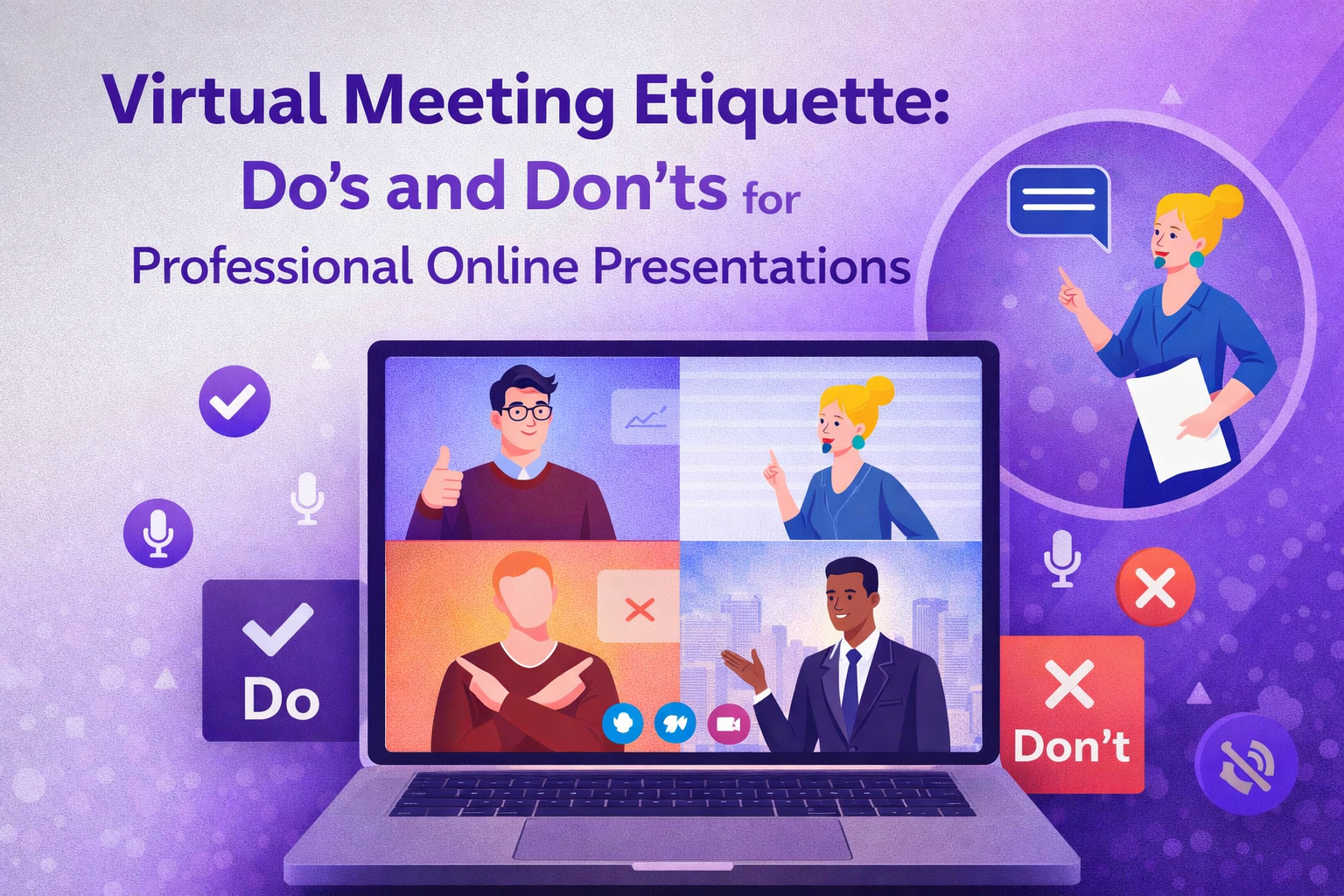
Virtual Meeting Etiquette: Do’s and Don’ts for Professional Online Presentations


Virtual meetings are now a daily professional reality. Whether you are presenting a quarterly report, pitching a new client, or leading a team training session, how you show up online shapes how others perceive your competence and credibility.
Most people focus entirely on what they will say. They give almost no thought to how their slides look, how they appear on camera, or how they follow up afterward. The result is presentations that fail to land, no matter how strong the underlying content is.
This guide covers the essential etiquette for virtual presentations, from your setup and slides to your on-camera delivery and post-meeting follow-up, so every online presentation you give reflects the professional you are.
Before the Meeting: Prepare Your Presentation First
Strong virtual presentations start well before the meeting link goes live. The single most important thing you can do in advance is build your slide deck properly.
Your slides are the visual backbone of your entire presentation. In a virtual environment, they occupy most of the screen your audience sees. A clean, well-structured deck tells attendees within the first slide that you prepared properly. A cluttered, inconsistent one tells them you did not, regardless of how well you know the material.
Build slides that are designed for screens, not print. Use a minimum 24pt font for body text and 36pt or larger for headlines. Keep each slide to one main idea. Use high contrast color combinations so your content is readable on every monitor type. Replace text-heavy bullet lists with visuals, charts, and short statements wherever possible.
This is where starting with a professionally designed template makes a real difference. SlidesDepot offers a large collection of business presentation templates built specifically for screen-first delivery. The collection covers pitch deck templates, project report templates, training presentation templates, sales proposal templates, strategy decks, and more. Every template comes with clean layouts, professional typography, and consistent color schemes that are ready to use out of the box. You focus on your content and drop it into a framework that already looks polished.
SlidesDepot PowerPoint templates and Google Slides templates are fully editable, so you can customize colors, fonts, and layouts to match your brand without needing any design skills. Instead of spending hours formatting slides from scratch before every meeting, you have a screen-ready foundation in minutes.
Beyond your slides, complete these preparation steps before every virtual presentation:
- Test your microphone, camera, and internet connection at least 10 minutes before joining.
- Run a full screen share rehearsal with your actual presentation file open to confirm fonts, images, and transitions all display correctly.
- Position your camera at eye level and sit facing a natural light source.
- Use a clean or neutral background that does not compete visually with your slides.
- Send your slide deck and a clear agenda to attendees at least 24 hours in advance.
During the Meeting: How to Deliver a Professional Virtual Presentation
Start With Your Slides Already Visible
Join 2 to 3 minutes early and have your first slide on screen before attendees arrive. Confirm at the start that everyone can see the presentation and hear you clearly. State the agenda, the session duration, and when you will take questions. This removes uncertainty and sets a professional tone from the first moment.
Present Your Slides, Do Not Read Them
Your slides are visual anchors. Your voice is where the value lives. If you are reading every word off the screen, your slides contain too much text and your delivery adds nothing. Use your slides to display key points, data, and visuals, then use your voice to add interpretation, context, and examples.
Narrate every slide transition out loud. Say “Moving on to the results now” or “Here is what the data shows for Q3.” Remote attendees experience lag, distractions, and varying screen sizes. Verbal cues keep everyone oriented within your presentation.
Look at the Camera, Not Your Screen
Direct eye contact is one of the most powerful tools in any presentation. Online, that means looking at your camera lens, not at your slides or your own video preview. Train yourself to glance at your slides briefly, then return your gaze to the camera before speaking. This one habit significantly increases how engaged and confident you appear to your audience.
Engage Your Audience Throughout the Presentation
Virtual presentations compete with email, notifications, and everything else on your attendees’ screens. Build engagement directly into your presentation flow.
Add a question slide at natural stopping points. Use the chat window as a participation tool by asking attendees to share reactions before you move on. Run a quick poll if your platform supports it. Check in verbally every 10 to 15 minutes. Call on specific attendees by name rather than asking the group in general. These techniques keep attention focused and make your presentation a conversation rather than a broadcast.
Virtual Meeting Presentation Do’s and Don’ts
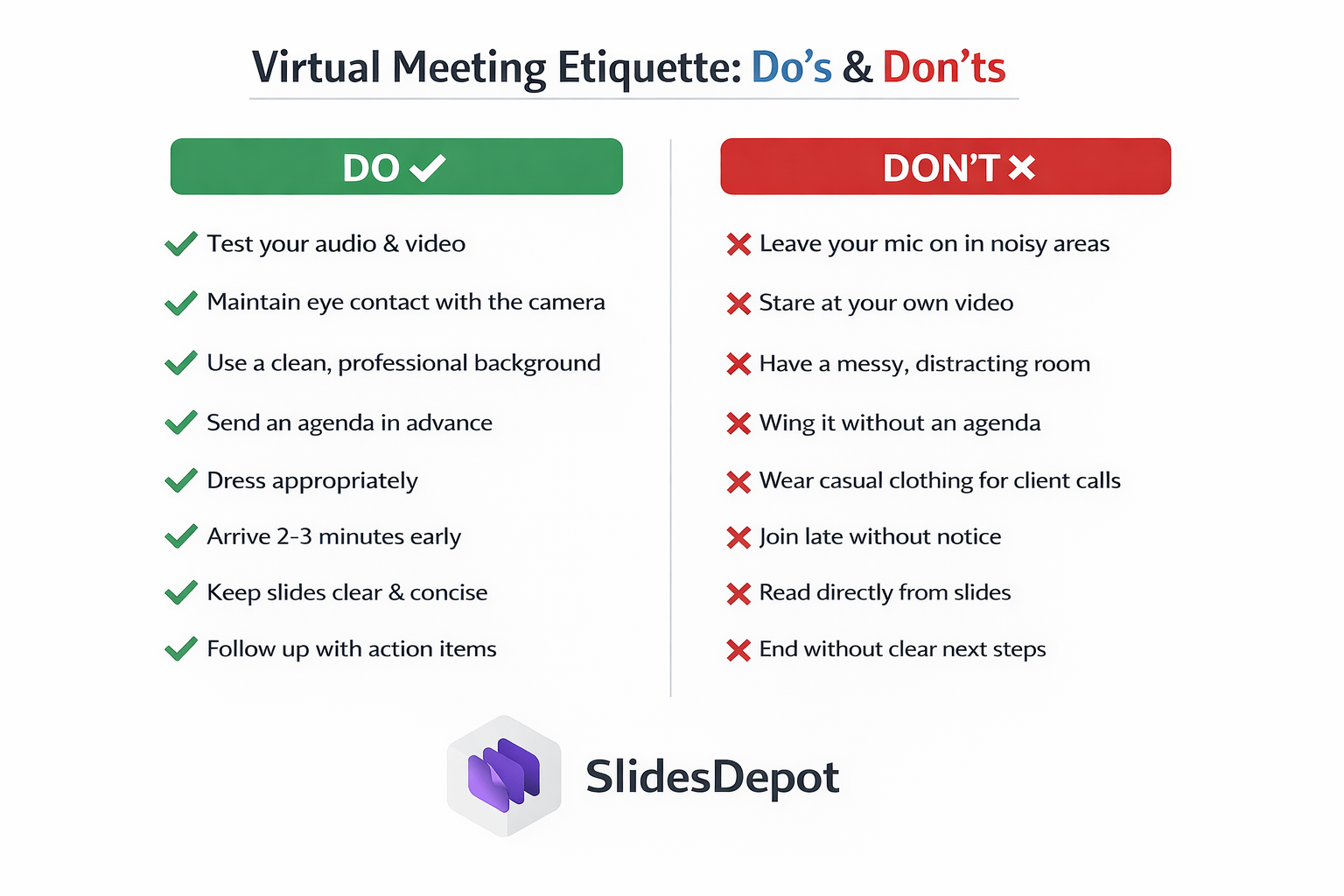
DO:
- Use a professionally designed presentation template so your slides look polished and consistent from the first slide to the last.
- Keep each slide to one idea with clean visuals and minimal text.
- Look at the camera when delivering key points.
- Narrate slide transitions so attendees always know where you are in the presentation.
- Pace your advances at roughly 60 to 90 seconds per slide.
- Monitor the chat window and acknowledge questions at natural breaks.
DON’T:
- Read your slides word for word. Add meaning with your voice, not repetition.
- Use small fonts, low contrast colors, or cluttered layouts. These are unreadable on most laptop screens.
- Share your full desktop. Always share the specific presentation window only.
- Rush through slides. Moving too fast loses your audience and signals poor preparation.
- Use mismatched fonts, colors, and spacing across slides. Inconsistency undermines your credibility before you say a word.
After the Presentation: Follow Up Properly
How you close out a virtual presentation is just as important as how you open it. Most presenters do nothing after the meeting ends. That is a missed opportunity.
Send a follow-up email within 24 hours that includes a short summary of what was covered, key decisions made, a clear list of action items with owners and deadlines attached, a link to the meeting recording if one was made, and the slide deck as an attachment or shared link.
Sharing your slides after the meeting extends the value of your presentation significantly. Attendees can review key points, share the deck with colleagues who missed the call, and refer back to data discussed during the session. It also reinforces the impression of a presenter who is thorough and organized.
Post-Meeting Checklist:
- Send summary email with slide deck within 24 hours
- Share the recording link
- Log all action items with owners and deadlines
- Schedule any follow-up meetings
Conclusion
Great virtual presentations come down to consistent habits. Prepare slides that are built for screens. Show up early with everything tested and ready. Deliver your content with camera presence and audience engagement. Follow up with a clear summary and your deck attached.
The fastest upgrade most presenters can make is their slides. A professionally designed template removes hours of formatting work and instantly lifts the visual quality of your presentation.
SlidesDepot offers templates for every type of business presentation. Whether you need a pitch deck, training presentation, status report, sales proposal, or strategy presentation, you’ll find professionally designed templates that are fully editable in both PowerPoint and Google Slides. Each template is built to look clean, modern, and sharp on any screen.
Your slides are visible to every person in your virtual meeting. Make sure they reflect the quality of your work.
Explore the full SlidesDepot template collection and find the right design for your next virtual presentation.
Tags: virtual meeting etiquette, video conference tips, online presentation best practices, presentation templates, PowerPoint templates, Google Slides templates, SlidesDepot, professional presentation slides


What Is a Slide Deck? Meaning, Examples & Ready-Made PPT Templates
In many professional, academic, and business settings, ideas are often shared through visual presentations. Whether you’re pitching a startup idea to investors, teaching students in a classroom, or presenting quarterly results to your team, a slide deck plays a central role in how your message is delivered and understood. But what exactly is a slide…

Background for Presentation: How to Choose the Perfect Slide Background (With Examples and Templates)
Most people spend hours writing their presentation content and less than five minutes picking a background. That imbalance matters more than you think. According to research from the Nielsen Norman Group on visual hierarchy, audiences scan slides in predictable patterns and a cluttered or poorly contrasted background actively disrupts that natural reading flow. Your slide…
Marketing Fundamentals: Core Concepts and Ready-to-Use Strategy Templates
In today’s highly competitive business environment, companies are constantly experimenting with new platforms, advertising channels, and digital tools. While innovation is important, long-term success rarely comes from tactics alone. Sustainable growth is built on a strong strategic base and that base is defined by Marketing Fundamentals. Marketing fundamentals provide the structure that guides every marketing decision. They shape…