What are Speaker Notes? How to Add Notes to PowerPoint Like a Pro
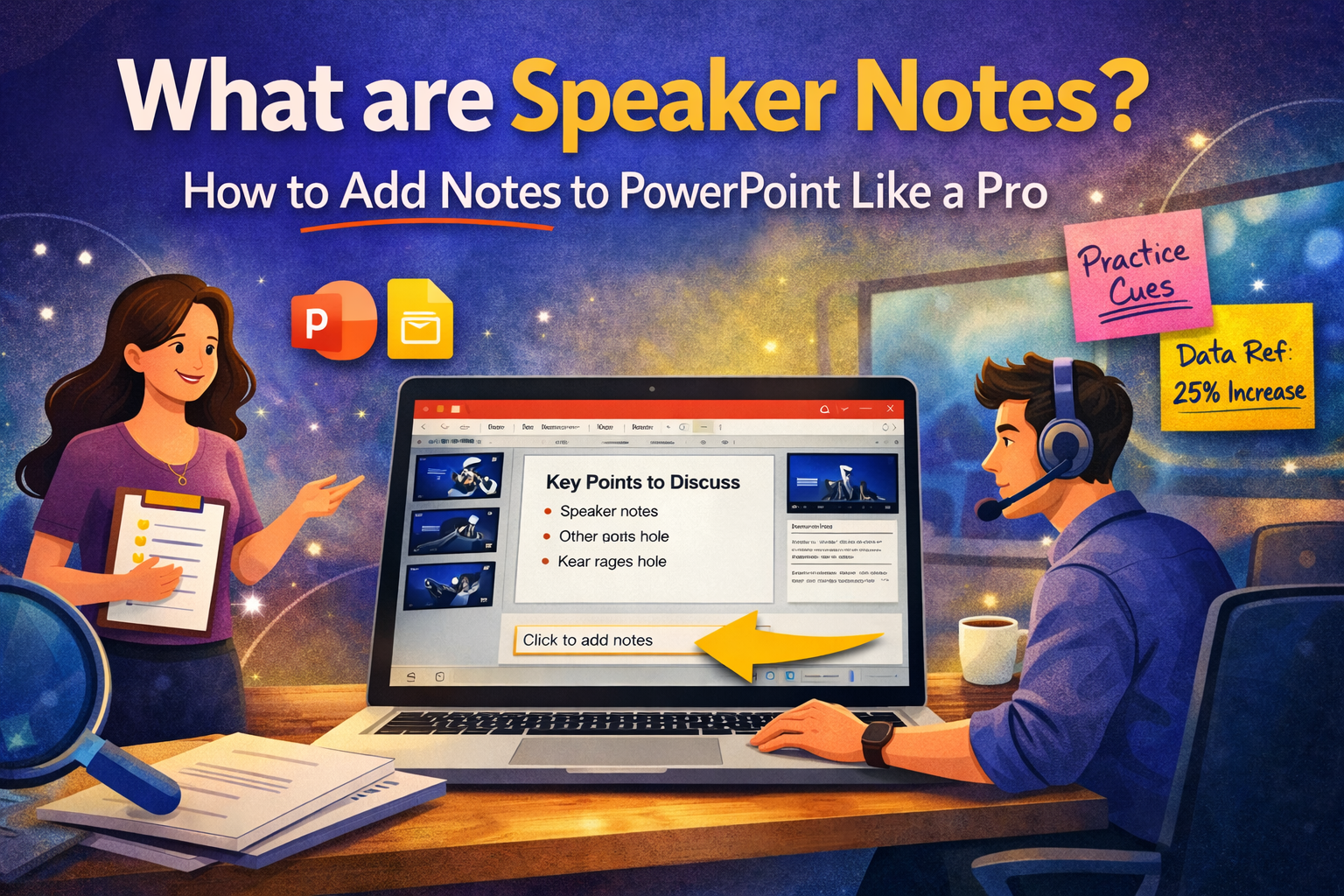


Most people treat speaker notes as an afterthought. They finish building their slides, type a few lines into the notes panel, and never think about them again. That approach misses the point entirely. Speaker notes, when written and used well, are what separate a presenter who reads from their slides from one who commands the room.
This guide breaks down what speaker notes actually are, how to add them in PowerPoint, and how to use them in a way that makes your delivery sharper and your audience more engaged.
What are Speaker Notes and Why Do They Matter
Speaker notes are a hidden text layer attached to each slide in your PowerPoint presentation. They appear on your screen while you present but remain invisible to your audience. Think of them as your personal delivery guide: the context, the transitions, the numbers you need to reference, and the cues that keep your story moving.
Here is what most guides do not tell you. Your notes are only as useful as the slides they are attached to. If your slides are overloaded with text, your notes become redundant. If your slides are too bare, your notes end up carrying the entire presentation. The goal is balance: clean slides that communicate visually, supported by notes that guide your spoken delivery.
That balance starts with how you design your slides before you write a single word in the notes panel.
How to Add Notes to PowerPoint: Step by Step
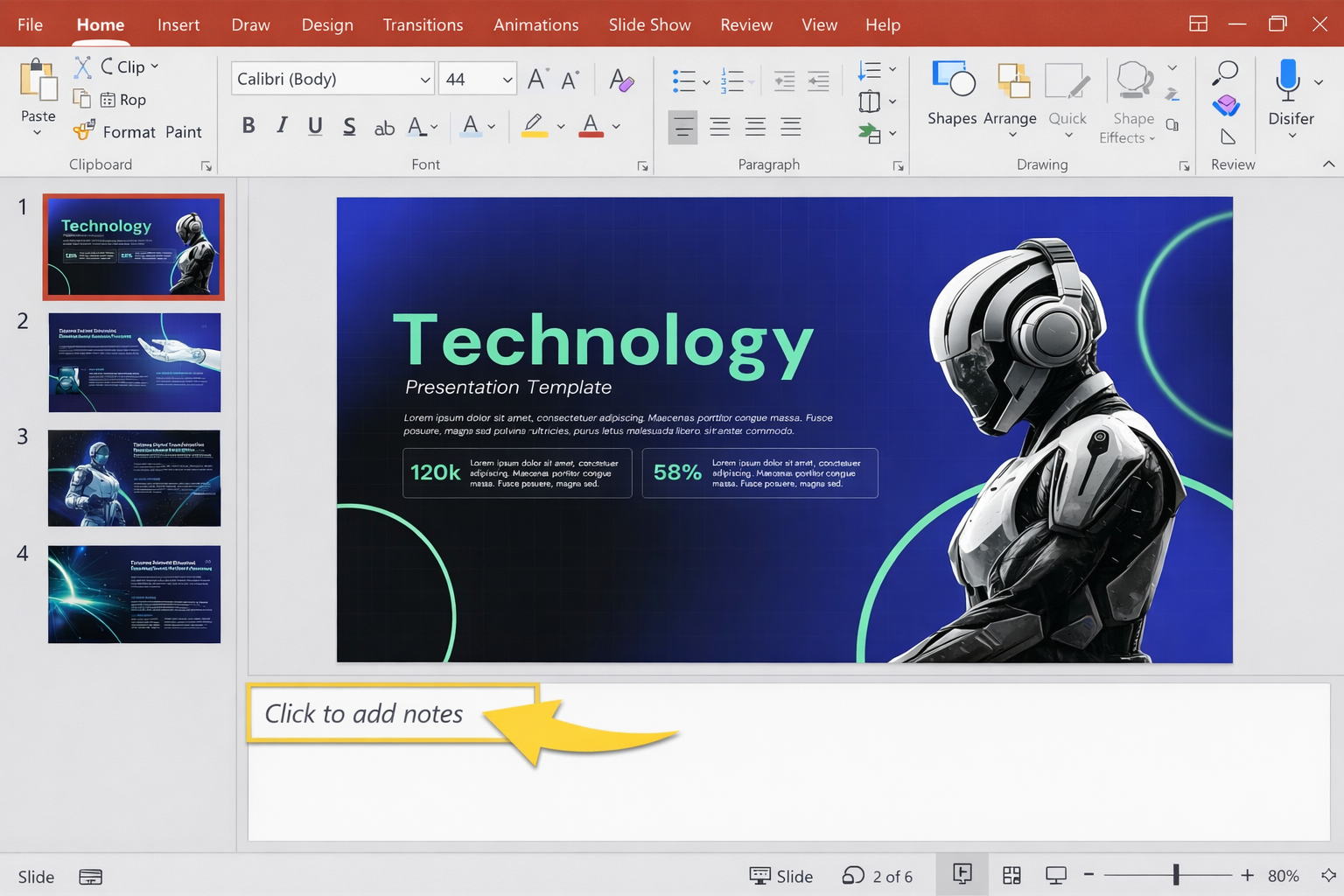
Step 1 – Open the Notes Panel
Open your presentation in PowerPoint. At the bottom of the screen, you will see a bar that reads “Click to add notes.” Click it and start typing. If the panel is not visible, go to the View tab and select Notes. You can drag the top edge of the panel upward to give yourself more room to write.
Each slide has its own independent notes field. What you type on slide one stays on slide one. As you move through your deck, your notes follow each slide automatically.
Step 2 – Use Notes Page View for Detailed Writing
For longer notes or when you want a cleaner writing environment, switch to Notes Page view. Go to the View tab and click Notes Page. This opens a full-page layout with a thumbnail of your slide at the top and a large text area below. You can format the text, adjust the size, and write in more depth without the constraints of the small panel at the bottom of the editing window.
Notes Page view is also the format PowerPoint uses when you print your notes, making it the right place to prepare handout-ready content.
Step 3 – Present Using Presenter View
This is where your notes do their real work. When you connect your laptop to a second screen and launch your slideshow, PowerPoint opens Presenter View on your device automatically. You see your current slide, a preview of the next slide, a running timer, and your speaker notes displayed in a large, scrollable panel.
Your audience sees only the slides on the projected screen. You have everything else. Use the font size controls in the bottom-left corner of the notes panel to make your text comfortable to read at a glance. You do not need to memorize your content. You need to know it well enough that your notes are just a checkpoint, not a script.
How to Write Speaker Notes That Actually Help You
Adding notes is easy. Writing notes that improve your delivery is a different skill. Most presenters make one of two mistakes: they write too much, turning their notes into a full script, or they write too little and leave themselves with nothing useful on screen.
The right approach is to write in layers. Start with your main point for each slide in one sentence. Then add one or two supporting details, a statistic, or a source you want to mention. Finally, add a transition line that tells you how to connect that slide to the next one. Three components per slide: the point, the support, the bridge.
Avoid full paragraphs. If you are reading sentences during a live presentation, your audience will notice. Write in fragments and phrases that trigger your memory, not replace it. Your voice should sound natural because your notes are prompts, not text to recite.
One practical tip: write your notes after you have rehearsed the presentation once without them. That way you know exactly where your memory needs support, and you only write notes for those moments.
The Slide Design Problem Nobody Talks About
Here is the issue most presenters hit but rarely identify. They spend hours on their notes and almost no time on their slide structure. Then, when they present, they find themselves fighting the slides instead of flowing with them.
When a slide has too many bullet points, your notes have to explain what the slide should have shown. When a slide has no visual hierarchy, you lose your place mid-sentence because nothing on screen anchors where you are. Good speaker notes cannot fix a poorly designed deck. They can only work well alongside a deck that is already clear.
This is where starting with a professionally designed template changes everything. SlidesDepot’s library of PowerPoint templates and Google Slides templates are built with this relationship in mind. Every template is professionally designed, fully editable in PowerPoint and Google Slides, and ready to customize with your content. The clean layouts and consistent color schemes give each slide a visual logic that makes your notes easier to follow and your delivery easier to execute.
When your slides are structured, your notes slot in naturally. You spend less time explaining what is on screen and more time adding the depth that only you can bring.
Using Speaker Notes Beyond the Presentation Room
Most presenters think of speaker notes as a live delivery tool. They are also something more useful: a way to turn your presentation into a self-contained document that works without you in the room.
When you share a PowerPoint file with notes included, or when you export a PDF with notes pages, your audience has a complete reference document. The slide gives them the visual. The note gives them the context. Together, they communicate what you would have said in person.
This is particularly valuable for business presentation templates used in sales, strategy, or internal reporting, where the deck is often sent ahead of a meeting or reviewed after one. SlidesDepot’s pitch deck templates and strategy presentation templates are designed to work in both contexts: strong on screen during a live presentation and clear enough to stand alone as a document when notes are added.
If your presentation needs to work in the room and in the inbox, build your notes with both audiences in mind.
Common Mistakes That Undermine Your Speaker Notes
Writing full sentences you end up reading aloud is the most common problem. It signals to your audience that you are not fully prepared, even if the opposite is true. Keep your notes tight.
Skipping the transition lines is the second mistake. Moving from slide to slide with no verbal bridge makes your presentation feel choppy. A single line at the top of each slide’s notes, reminding you how the previous point connects to this one, keeps your narrative continuous.
The third mistake is never rehearsing with your notes open. Notes you write in a quiet room feel different when you are reading them under pressure. Run at least one full rehearsal in Presenter View before the real thing. You will quickly find which notes are too long, which are unclear, and which slides need more structure before your notes can help you.
Conclusion
Speaker notes work best when they are the last layer you add to an already well-built presentation. Get your slides right first. Make them clean, structured, and visually clear. Then write notes that guide your delivery, not replace it.
The combination of a strong deck and focused speaker notes is what makes a presentation feel effortless, even when a significant amount of preparation went into it.
SlidesDepot gives you the foundation to make that happen. Explore the full SlidesDepot template collection and find professionally designed, fully editable templates ready to customize for your next presentation.


How to Convert PowerPoint to Google Slides Without Losing Formatting
Switching from Microsoft PowerPoint to Google Slides does not have to mean losing hours of design work. Whether you are collaborating with a team, presenting from a browser, or simply moving away from paid software, knowing how to convert PowerPoint to Google Slides while keeping your formatting intact is a skill every professional needs. This…
How to Convert Canva Presentations to Google Slides in Minutes (2026 Guide)
You spent hours building a beautiful presentation in Canva. The fonts are on point, the colors match your brand, and the layout looks exactly how you imagined it. Then someone asks for the file in Google Slides format, and suddenly the whole process feels far more complicated than it should be. This is a frustration…

How to Structure a Persuasive Speech People Actually Remember
A persuasive speech lives or dies in the first thirty seconds. You can have the strongest argument in the room, but if your opening doesn’t earn attention, the rest of your points are wasted breath. Most speakers spend weeks polishing their words and almost no time thinking about how those words are supported visually, which…