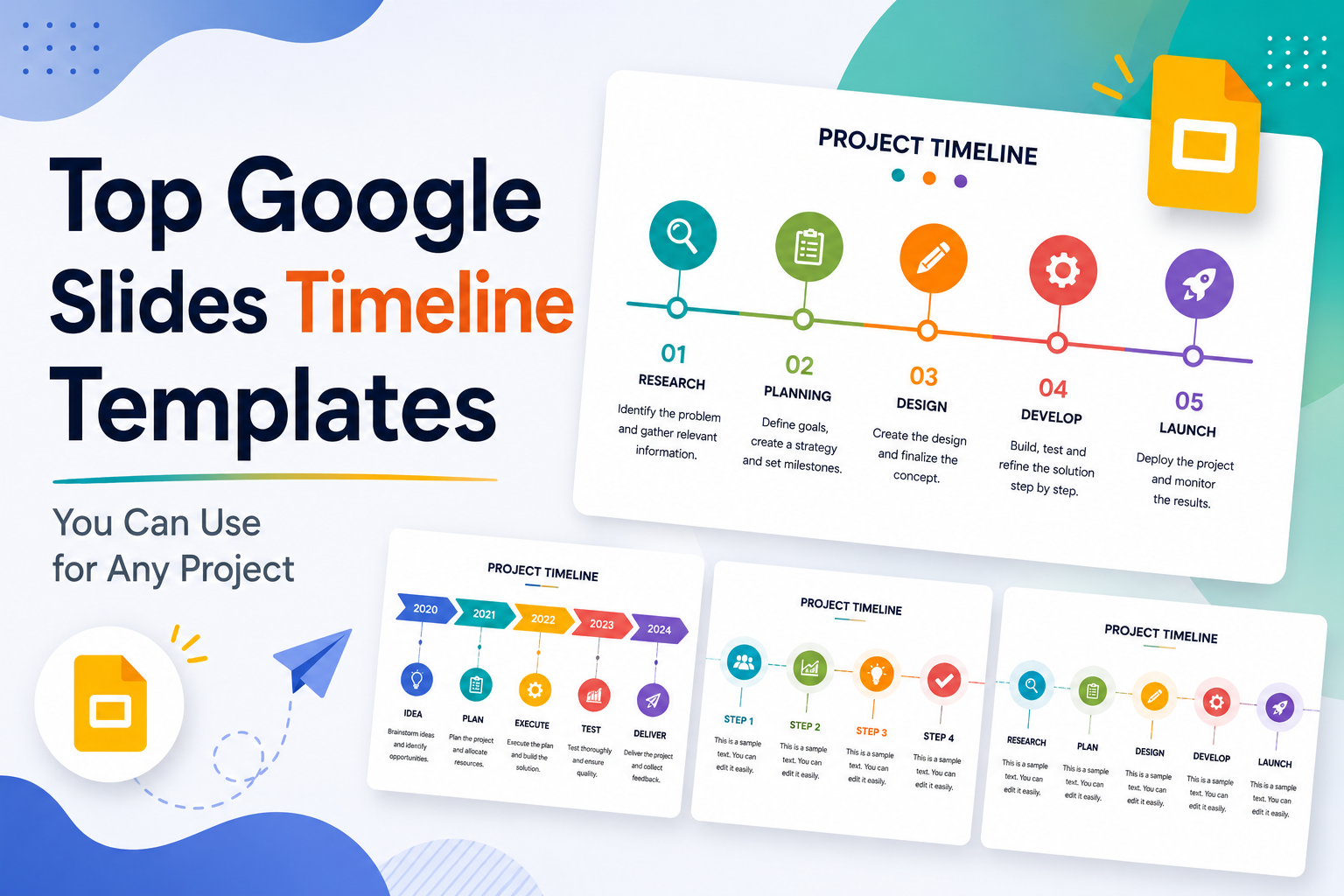
Top Google Slides Timeline Templates You Can Use for Any Project


Every project tells a story, and timelines are how you tell it visually. Whether you are pitching a product launch to stakeholders, walking students through a historical sequence, or mapping out a multi-phase marketing campaign, the right timeline slide can do more communicative work than three paragraphs of text ever could.
The problem most people run into is not a lack of ideas. It is a lack of time. Building a clean, professional timeline from scratch in Google Slides takes longer than it should, and the result often looks rough around the edges. That is exactly why a well-designed google slides timeline template matters so much. The structure is already built. You just fill it in.
This guide covers the best timeline template styles available right now, how to pick the right one for your specific project, and how to customize it without losing the professional finish that makes timelines worth using in the first place.
Why Timelines Belong in More Presentations Than They Get
Timelines are underused. Most people reach for bullet points when they want to show a sequence of events, but bullet points do not communicate time the same way a visual timeline does. A well-laid-out timeline lets your audience absorb chronology at a glance without reading through a wall of text.
They work in a surprisingly wide range of contexts. Project managers use them to show delivery schedules. Teachers use them to illustrate historical progressions. Founders use them in pitch decks to show company milestones. Marketers use them for campaign roadmaps. The format adapts to almost any industry.
The key is that the design must match the context. A startup pitch needs something sleek and modern. An academic presentation might call for something more structured and neutral. A creative agency walkthrough can afford to be bolder. That is why having access to a varied library of timeline slide templates matters more than just grabbing the first one you find.
What Makes a Google Slides Timeline Template Actually Useful
Not all templates are created equal. Some look polished in a preview but fall apart the moment you try to edit them. Here is what separates a genuinely useful timeline template from one that only works in theory.
Editability comes first. Every text box, shape, and color should be independently adjustable without breaking the layout. If moving one milestone node causes the entire slide to collapse, the template is not well-built.
Proportional spacing matters more than most people realize. A timeline where all the milestones are crammed together on the left and the rest of the slide is empty looks amateurish. Good templates maintain visual balance regardless of how many events you add.
Font and color consistency should be baked in. Templates that use mismatched font sizes or arbitrary color choices force you to do extra cleanup before the slide is presentable. Designer-crafted templates get this right from the start because someone made intentional choices about hierarchy and palette.
Compatibility also matters. The best templates work in both Google Slides and PowerPoint without requiring you to convert formats, re-align objects, or redo the layout. That kind of cross-platform flexibility saves real time when collaborating with a team that uses different tools.
Types of Google Slides Timeline Templates and When to Use Each
The phrase “timeline template” covers a wide range of visual formats. Understanding the differences helps you pick the right one for your specific use case.
Horizontal timelines
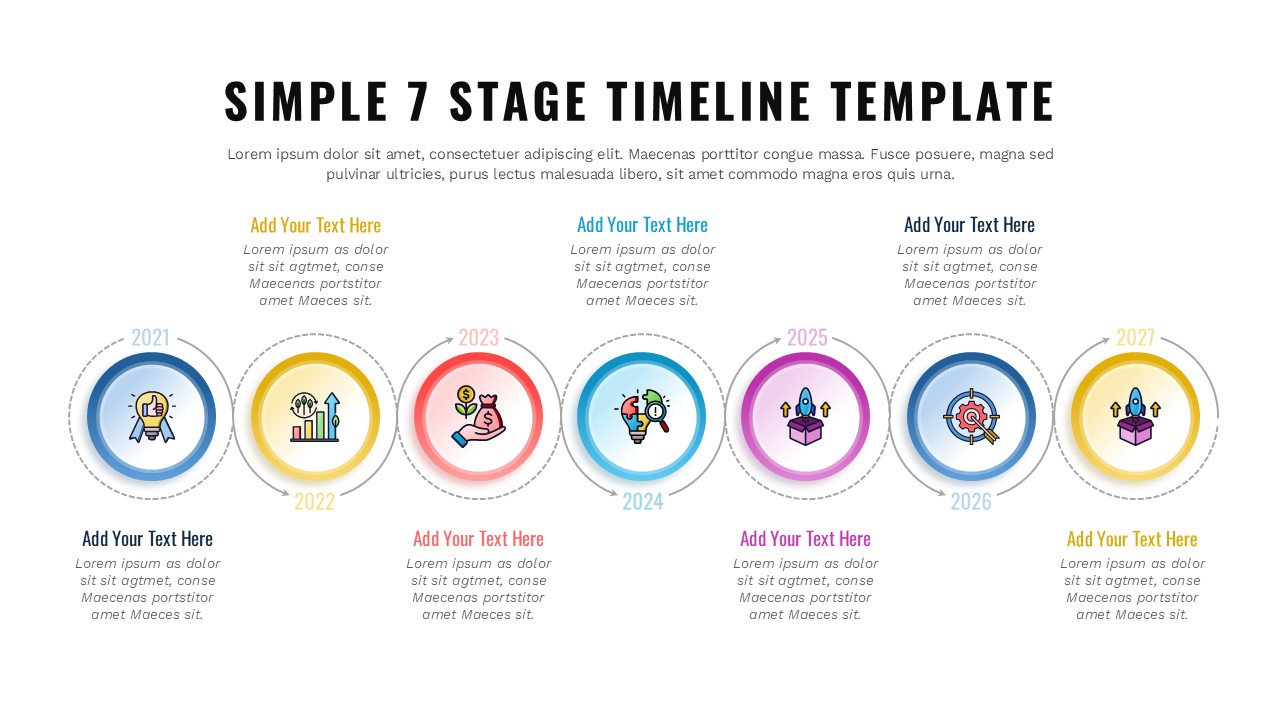
Horizontal timelines are the most familiar format. Events are arranged left to right along a central line, with labels above or below each milestone. This layout works well for linear sequences where the progression from start to finish is the main point. Project milestones, product roadmaps, and historical timelines all fit this format naturally.
Vertical timelines
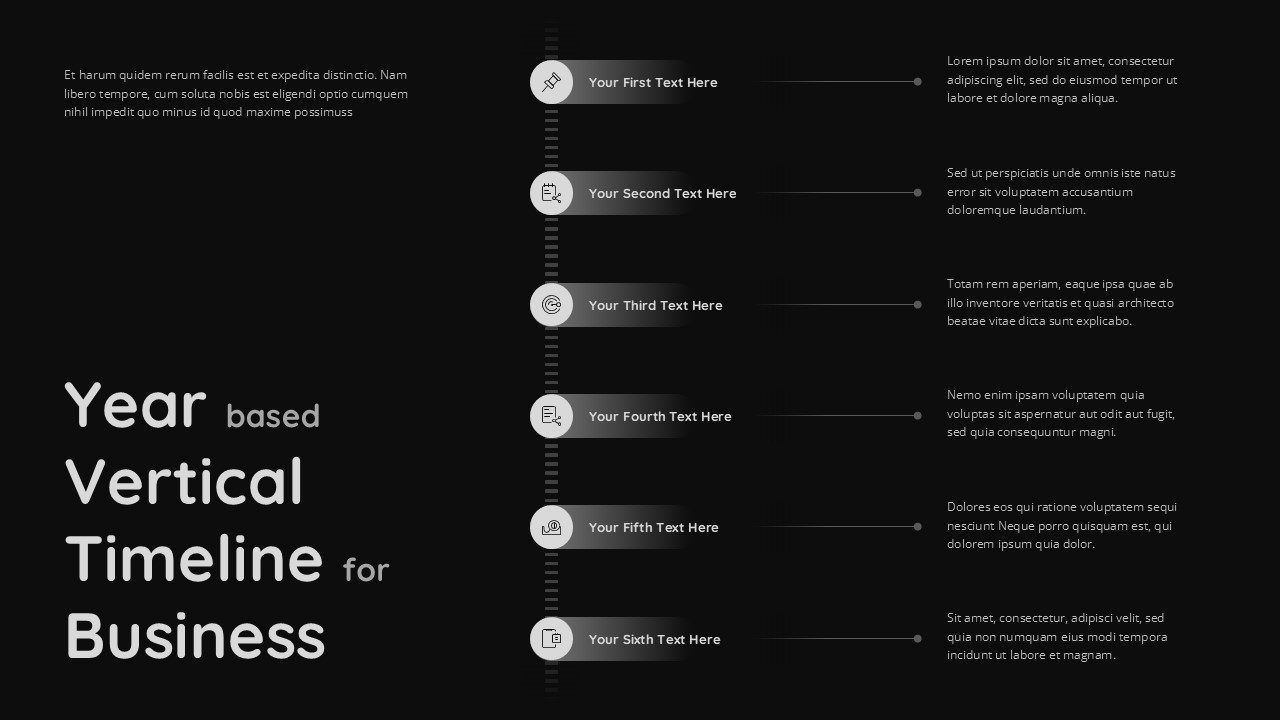
Vertical timelines arrange events top to bottom and tend to work better when you have longer descriptions attached to each milestone. They feel more like an article or report than a slide, which makes them useful for detailed case studies or event breakdowns where each point needs explanation.
Roadmap-style timelines
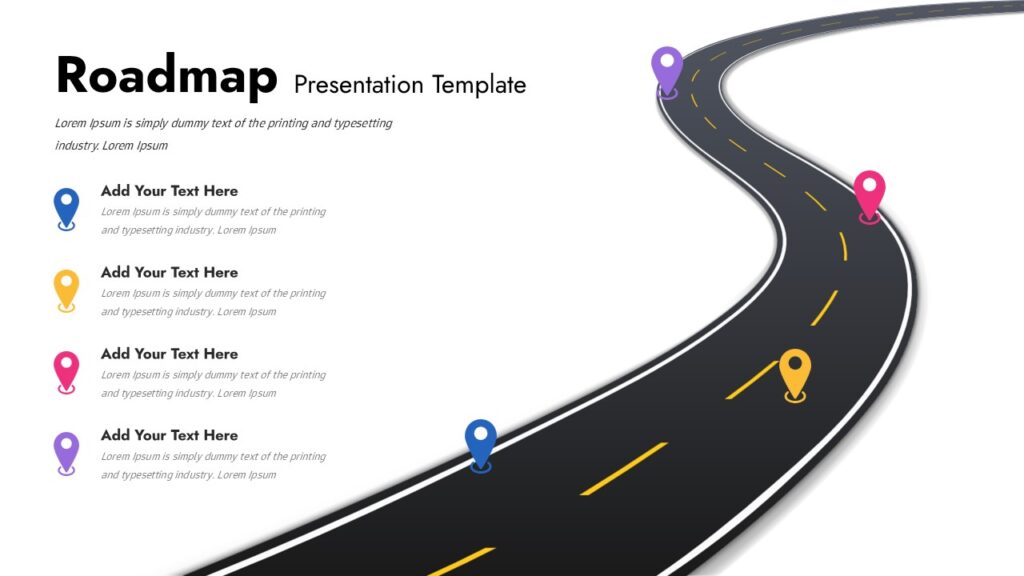
Roadmap-style timelines add a planning layer. Instead of just showing when things happened, they show when things are planned to happen, often with phases, owners, or status indicators built in. These are common in product development and project management contexts.
Project Milestone Presentation Template
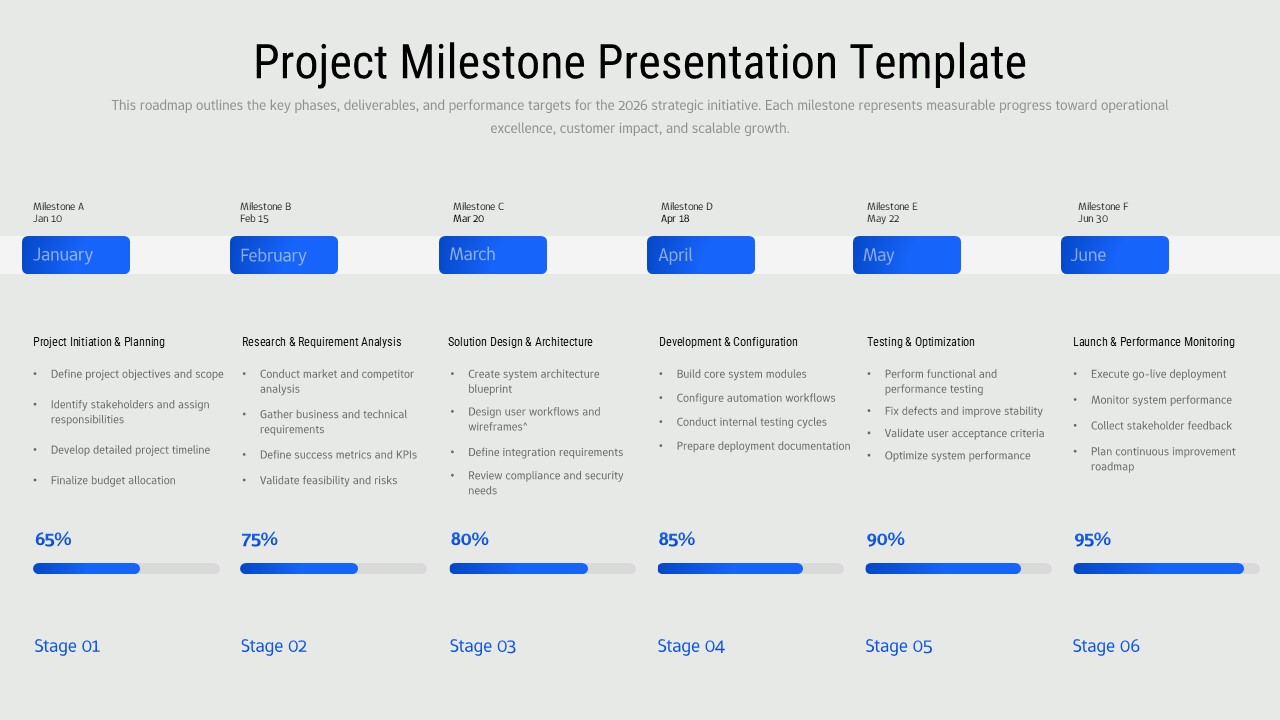
Milestone summary slides compress a full timeline into a single high-impact visual, usually showing four to six key moments. These work well near the end of a pitch or proposal when you want to leave the audience with a clear sense of the journey ahead.
Timelines Infographic

Infographic timelines blend data and narrative. They include icons, numbers, or visual markers alongside each event to add context at a glance. These are common in marketing decks and annual reports where visual variety keeps the audience engaged.
Each of these formats is available as a ready-to-edit presentation timeline at SlidesDepot, built for both Google Slides and PowerPoint with no conversion needed.
How to Make a Timeline on Google Slides the Right Way
If you have ever tried to build a timeline in Google Slides from scratch, you know it takes longer than expected. Here is a practical walkthrough of the process, including where templates save you the most time.
Step 1: Define your content before you open any tool. Write down the milestones, dates, and any short descriptions. Know how many events you are working with. This prevents you from picking a template with five milestone slots when you need eight.
Step 2: Choose the right template format. Based on your content, pick a horizontal, vertical, or roadmap-style layout. If your events have short labels and your audience needs to absorb everything quickly, go horizontal. If each milestone needs a sentence of context, go vertical.
Step 3: Drop the template into your Google Slides presentation. With a well-built template, this takes about thirty seconds. Open the file, copy the slide, paste it into your deck.
Step 4: Replace placeholder text. Click each text element and type in your real content. Do not try to resize or reposition anything yet. Fill the content first.
Step 5: Adjust colors to match your brand or deck style. Most designer-crafted templates use grouped elements, so you can change a color across the whole timeline in a few clicks without having to select individual shapes one by one.
Step 6: Add or remove milestone nodes as needed. Good templates are built so that duplicating or deleting a node does not break the alignment. Copy a node, paste it, and position it along the timeline axis.
Step 7: Review at the full-slide level. Zoom out and look at the whole thing. Check that the spacing feels balanced, the text is readable from a distance, and the color choices work in context.
Knowing how to make a timeline on Google Slides this way, with a solid template as your starting point, takes the process from forty-five minutes down to about ten.
Best Google Slides Timeline Template Styles at SlidesDepot
SlidesDepot offers a curated library of timeline templates designed specifically for professional use. Every template is hand-crafted by designers, not auto generated, which means the spacing, typography, and color choices hold up when you edit them.
Here are some of the most versatile styles in the collection.
Clean horizontal milestone timeline. A minimal design with a single horizontal axis, circular milestone markers, and space for a short label and date beneath each point. Works for any industry. Easy to expand to more milestones without losing balance.
Phase-based roadmap timeline. Divides the timeline into color-coded phases with a clear start and end point for each. Ideal for project planning presentations where you need to show overlapping stages or handoffs between teams.
Vertical narrative timeline. Each milestone gets its own row with a larger text area. Best for case studies, research presentations, or any situation where the story behind each event matters as much as the date.
Icon-driven infographic timeline. Pairs each milestone with a relevant icon and uses color blocks to separate stages. Strong visual impact. Good for marketing decks, investor presentations, or anywhere you need to hold attention across a long slide.
Compact four-milestone summary. A focused layout designed to highlight four key milestones. Works well as an opening or closing slide to emphasize the most important moments in a presentation.
These templates are available through SlidesDepot, including a free plan for exploring the collection.
Picking the Right Timeline Slide Template for Your Context
The best timeline template is not necessarily the most visually complex one. It is the one that matches your content, your audience, and the moment in your presentation where it appears.
A few practical filters to apply when choosing.
How much text does each milestone need? If you are showing dates and short labels, a horizontal layout handles this well. If each point needs two or three sentences, a vertical format gives you the space without forcing you to shrink the font to unreadable sizes.
What is the mood of the deck? A sleek, dark-background template fits a tech startup pitch. A clean, white-background layout with blue accents is more neutral and works across industries. An icon-heavy design adds energy but requires slightly more editing time.
How many milestones are you showing? Templates are usually optimized for a certain range. A four-node template stretched to ten nodes looks different than it was designed to. Pick a template that fits your actual count, or choose one explicitly designed to scale.
Is this a standalone slide or part of a full deck? If you are adding a timeline to an existing presentation, choose a template that matches the color palette and style of the slides already in the deck. SlidesDepot’s library includes both single slides and full deck templates, so you can match styles precisely without starting over.
Customizing Your Timeline Without Breaking the Design
One of the most common mistakes people make with presentation templates is over-editing. They change so many things that the original design logic is lost, and the slide ends up looking worse than it started.
A few rules help avoid this.
Change the colors but keep the contrast ratios. If the template uses a dark text on a light background, maintain that relationship even if you switch the specific shades. Flipping to light text on a dark background changes the whole visual register and may not work with the rest of your deck.
Replace fonts only if necessary, and match the weight. If the template uses a bold sans-serif for headings and a lighter weight for body text, keep that relationship when you switch to your brand font. Swapping to a similar font that ignores the weight hierarchy flattens the visual hierarchy.
Resist the urge to add more elements. Timelines are already information-dense. Every additional label, icon, or decorative element competes for attention. If something is not essential, leave it out.
Use the alignment tools. Google Slides has built-in alignment and distribution tools that keep your nodes evenly spaced. Use them every time you add or move an element.
Why a Google Slides Timeline Template Saves More Than Just Time
The time savings are real, but they are not the only reason to use a template. The less obvious benefit is consistency. When your timeline looks polished, it signals to your audience that you respect their time and have put thought into your presentation. It raises the perceived quality of everything else in the deck.
It also removes a specific kind of creative friction. Staring at a blank slide trying to decide how to arrange twelve milestones in an interesting way is not a productive use of your energy before a presentation. Starting from a well-structured template redirects that energy toward the content itself, which is where your expertise actually lives.
SlidesDepot’s library is updated weekly with new templates, so the options stay fresh without you having to search across multiple sites or piece together something from an inconsistent collection. One subscription, one place, both PowerPoint and Google Slides formats ready to go.
Wrapping Up
Timelines are one of the highest-utility slide types you can add to any presentation. They compress complex chronological information into a format your audience can absorb in seconds, and they signal organizational clarity that text-heavy slides rarely achieve.
The easiest way to make one that actually looks good is to start with a well-designed google slides timeline template rather than building from scratch. The structure is already there. Your job is to put the right content in it and make sure the design fits the rest of your deck.
SlidesDepot offers a full range of timeline templates, from clean horizontal layouts to detailed roadmap styles, all designer-crafted and available for Google Slides and PowerPoint .
Browse the full template library at slidesdepot and find the timeline format that fits your next project.
Meta title : Best Google Slides Timeline Templates for Any Project .53
Meta description : Find the best Google Slides timeline template for your next presentation. learn how to build one fast, and download free templates at SlidesDepot. 147


PowerPoint Shortcuts Every Professional Should Know (And Actually Use)
Creating presentations is a core part of many professional roles, yet countless hours are still lost navigating menus, adjusting layouts, and repeating simple actions. One of the most effective ways to work smarter in Microsoft PowerPoint is by mastering essential keyboard shortcuts. The right PowerPoint shortcuts help you build slides faster, keep designs clean and…

How to Convert Canva Presentations to Google Slides in Minutes (2026 Guide)
You spent hours building a beautiful presentation in Canva. The fonts are on point, the colors match your brand, and the layout looks exactly how you imagined it. Then someone asks for the file in Google Slides format, and suddenly the whole process feels far more complicated than it should be. This is a frustration…
10 Effective Presentation Skills Every Professional Should Master
In today’s competitive professional landscape, knowing how to give a good presentation is no longer optional. Whether you are pitching to investors, leading a team meeting, or delivering a conference talk, your ability to communicate with clarity and confidence can define how others perceive your expertise and credibility. The good news is that effective presentation…