How to Convert PowerPoint to Google Slides Without Losing Formatting
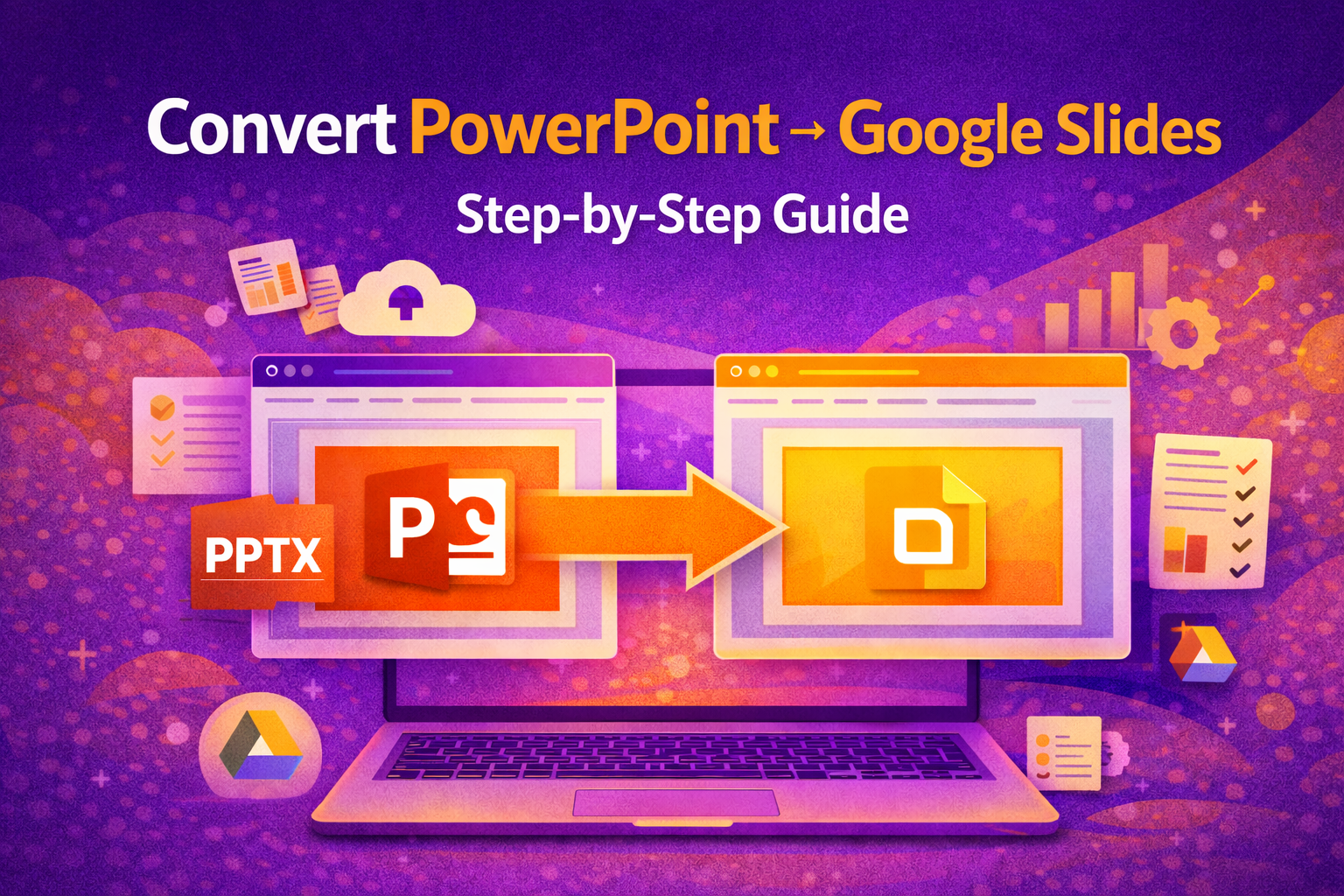


Switching from Microsoft PowerPoint to Google Slides does not have to mean losing hours of design work. Whether you are collaborating with a team, presenting from a browser, or simply moving away from paid software, knowing how to convert PowerPoint to Google Slides while keeping your formatting intact is a skill every professional needs. This guide covers three proven methods, common pitfalls, and quick fixes to keep your slides looking exactly as intended.
WHY CONVERT POWERPOINT TO GOOGLE SLIDES?
Google Slides offers several advantages over PowerPoint, especially for teams:
• Real-time collaboration: multiple people can edit simultaneously with no version conflicts.
• Cloud access: open your presentation from any device, anywhere, with just a browser.
• Free to use: no subscription required, just a Google account.
• Easy sharing: share via link with view or edit permissions in seconds.
METHOD 1: UPLOAD DIRECTLY TO GOOGLE DRIVE (RECOMMENDED)
This is the fastest and most reliable method for converting a .ppt or .pptx file.
1. Go to drive.google.com and sign in to your Google account.
2. Click ‘+ New’ > ‘File upload’ and select your PowerPoint file. You can also drag and drop the file directly into the Drive window.
3. Once uploaded, right-click the file > ‘Open with’ > ‘Google Slides.’
4. Go to File > ‘Save as Google Slides’ to convert it into a native Slides format stored in your Drive.
Tip: Always click ‘Save as Google Slides.’ If you skip this step, the file stays in .pptx format and will not behave like a native Slides file.
METHOD 2: OPEN AN EXISTING FILE FROM GOOGLE DRIVE
Already have the file in Drive? No need to re-upload.
1. Locate your .pptx file in Google Drive. It will display a PowerPoint icon.
2. Right-click the file > ‘Open with’ > ‘Google Slides.’
3. Click File > ‘Save as Google Slides’ to create a fully converted native copy.
METHOD 3: IMPORT SLIDES INTO A NEW PRESENTATION
Best when you need to merge slides from multiple files or import only specific slides.
1. Go to slides.google.com and open a blank presentation.
2. Click File > ‘Import slides.’
3. Upload your .pptx file using the Upload tab.
4. Select all slides or only the ones you need. Check ‘Keep original theme’ to preserve the design.
5. Click ‘Import slides’ and they will appear in your presentation immediately.
COMMON FORMATTING ISSUES AND HOW TO FIX THEM
Most simple presentations convert cleanly, but complex files may have a few hiccups. Here is what to look for:
Custom fonts change: This happens because the font is not available in Google Slides. Fix it by using Google Fonts in PowerPoint before converting, or use Format > Replace fonts in Slides after conversion.
Animations break: Advanced effects are not fully supported. Rebuild any broken animations directly in Google Slides after conversion.
SmartArt is static: PowerPoint SmartArt gets converted to images or grouped shapes. Recreate it using the built-in diagram tool in Google Slides.
Videos missing: Locally embedded video files do not transfer. Replace them with YouTube links or Google Drive video links.
Text and spacing shifts: Font rendering differences between the two apps can cause minor shifts. Review each slide and adjust spacing or padding as needed.
PRO TIPS FOR A SMOOTHER CONVERSION
• Use Google Fonts in PowerPoint before converting. This eliminates font substitution entirely.
• Flatten SmartArt and complex diagrams as PNG images before uploading for pixel-perfect results.
• Match slide dimensions (16:9) in both files via File > Page Setup to prevent layout shifts.
• Do a full slide-by-slide review after conversion and fix any misaligned elements.
• If there are too many issues to fix manually, start fresh with a ready-made Google Slides template from SlidesDepot .
FINAL THOUGHTS
Converting PowerPoint to Google Slides is quick and straightforward. For most users, Method 1 (uploading directly to Google Drive) delivers the best results with minimal formatting loss. Always save your file as Google Slides after opening, review every slide, and fix any small issues that arise.
If you are tired of dealing with conversion issues altogether, visit SlidesDepot.com for hundreds of professionally designed Google Slides templates built natively for Slides, free to download, and ready to customize.


PPT Meaning: Beginner Guide + Free PPT Templates from SlidesDepot
If you’ve ever been asked to create a PPT for school, college, or work, you might wonder what exactly PPT means. For beginners, this confusion is common, especially if you’re new to presentations or digital tools. Understanding the PPT meaning is the first step toward creating clear, organized, and professional presentations. This beginner-friendly guide explains what PPT is, how…

Virtual Meeting Etiquette: Do’s and Don’ts for Professional Online Presentations
virtual meeting etiquette are now a daily professional reality. Whether you are presenting a quarterly report, pitching a new client, or leading a team training session, how you show up online shapes how others perceive your competence and credibility. Most people focus entirely on what they will say. They give almost no thought to how…
Cute Background for Presentation: Trendy Templates You’ll Absolutely Love
Choosing a cute PPT background sounds simple until you are actually doing it. There are hundreds of options, and most of them look fine in isolation but fall apart the moment you add text, charts, or images on top. This guide is for anyone who wants to understand how presentation backgrounds actually work, what makes certain styles more…