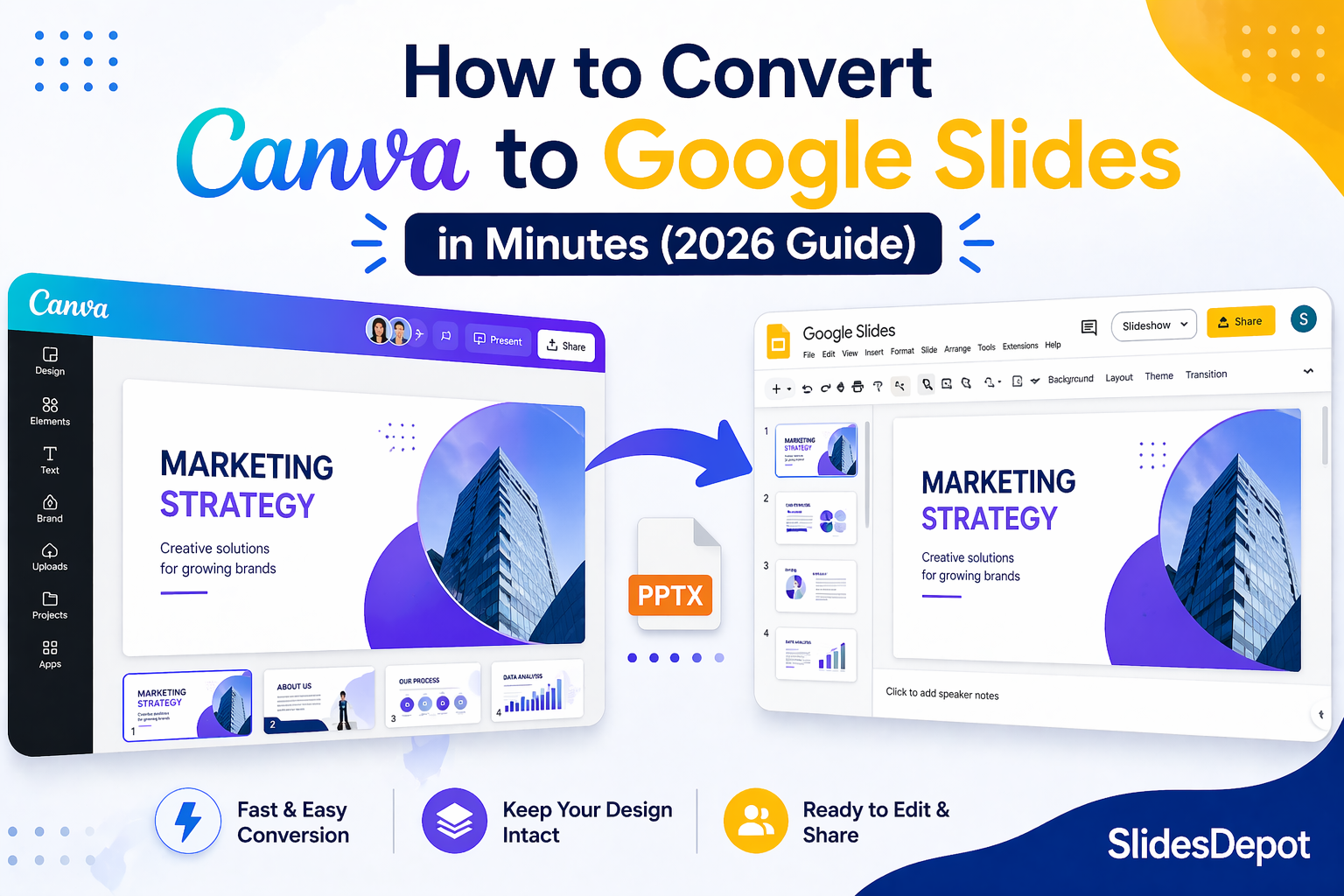
How to Convert Canva Presentations to Google Slides in Minutes (2026 Guide)


You spent hours building a beautiful presentation in Canva. The fonts are on point, the colors match your brand, and the layout looks exactly how you imagined it. Then someone asks for the file in Google Slides format, and suddenly the whole process feels far more complicated than it should be.
This is a frustration a lot of professionals, students, and founders run into regularly. Canva is a fantastic design tool, but Google Slides is where many teams collaborate, share, and present. When both tools live in your workflow, knowing how to convert Canva to Google Slides cleanly can save you a significant amount of time and stress.
In this guide, you will learn every reliable method to turn a Canva presentation into a Google Slides file, understand what carries over and what does not, and discover a smarter way to build presentations that work well from the start.
Why People Need to Convert Canva to Google Slides
Canva and Google Slides each serve different purposes in a presentation workflow. Canva is excellent for design-heavy work with rich templates, custom graphics, and brand elements. Google Slides, on the other hand, is built for collaboration, real-time editing, easy sharing, and presenting directly from a browser.
Here are some common situations where the conversion becomes necessary:
- Team collaboration: Your colleagues work in Google Workspace and need access to edit the deck.
- Client deliverables: A client requests a Google Slides file they can keep and update themselves.
- Classroom use: Educators sharing presentations through Google Classroom need Slides-compatible files.
- Live presentations: Presenting from Google Slides during a video call is often more reliable than Canva.
- Storage and access: Google Drive keeps everything organized and accessible across devices.
Whatever your reason, the good news is that the process is straightforward once you know the right method.
How to Convert Canva to Google Slides: Step-by-Step Methods
There are two primary ways to turn a Canva presentation into a Google Slides file. Both work well, though each has slight differences in what gets preserved during the export.
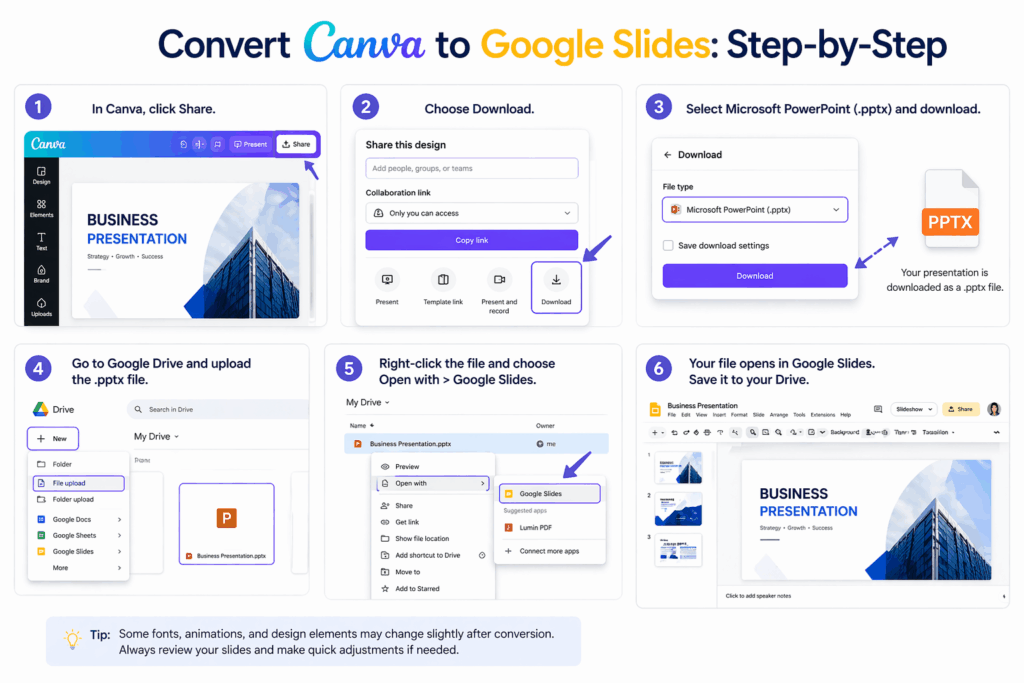
Method 1 – Export Canva as PowerPoint and Import into Google Slides
Step 1: Open your Canva presentation and click the Share button in the top right corner of the screen.
Step 2: Select Download from the dropdown menu.
Step 3: Choose Microsoft PowerPoint (.pptx) as the file format and click Download.
Step 4: Open Google Drive in your browser. Click New, then File Upload, and select the downloaded .pptx file.
Step 5: Once uploaded, right-click the file in Google Drive and select Open with Google Slides.
Step 6: Google Slides will convert and open the file automatically. You can then save it directly to your Drive as a native Google Slides file.
This method works well for most standard presentations and keeps the majority of your layout intact.
Method 2 – Export Canva Directly as a Google Slides File
Canva offers a direct export option that sends your presentation straight to Google Drive. This is the fastest method if your account is already connected.
- In Canva, click Share in the top right corner.
- Scroll down to find the option labeled Google Drive or Google Slides.
- Connect your Google account when prompted if you have not already done so.
- Select the destination folder in your Drive and click Export.
- Open Google Drive and locate the file. Right-click and choose Open with Google Slides to start editing.
This method skips the manual download step and is especially convenient when you convert Canva presentations frequently.
What Transfers Well and What to Watch Out For
The export process handles most design elements smoothly, but there are a few areas worth checking after conversion.
What Typically Transfers Without Issues
- Text content, headings, and body copy
- Images and photos you uploaded to Canva
- Basic shapes and icons from the Canva library
- Slide order and general layout structure
- Background colors and solid fills
What May Change During the Conversion
- Custom fonts: Canva uses fonts that may not be available in Google Slides. The system will substitute a similar font, which can slightly shift text alignment.
- Animations: Canva animations do not transfer to Google Slides. You will need to recreate any transitions or entrance effects.
- Canva-specific design elements: Certain graphics or charts built natively in Canva may appear as flattened images rather than editable elements.
- Gradient backgrounds: Complex gradients may not render identically and sometimes need a quick manual fix.
After importing, spend five minutes reviewing each slide, especially if your deck uses a lot of custom design work. Small adjustments are usually all it takes to make everything look right again.
Tips for a Smoother Canva to Google Slides Workflow
A few simple habits can make the conversion process far less work each time you go through it.
Use Standard Fonts When Designing in Canva
If you know your Canva presentation will eventually move to Google Slides, consider using fonts available on both platforms. Fonts like Roboto, Open Sans, Lato, Montserrat, and Oswald are widely available and render consistently across tools.
Keep Design Elements Grouped and Organized
Grouping related elements in Canva before exporting helps them stay together during the conversion. Ungrouped elements scattered across a slide are more likely to shift position.
Test a Single Slide Before Converting the Full Deck
For large or important presentations, export just the first slide as a test. Open it in Google Slides and check how fonts, spacing, and images look. This saves time compared to discovering layout issues across 30 slides after a full export.
Consider Starting with a Google Slides Template Instead
If your presentation is destined for Google Slides from the beginning, it is worth asking whether Canva is the right starting point at all. Platforms like SlidesDepot offer a wide library of professionally designed Google Slides templates that are fully editable and ready to use without any conversion steps. Starting directly in Google Slides means your formatting, fonts, and animations work exactly as intended from the first slide to the last.
How to Turn Canva into Google Slides for Specific Use Cases
For Business Presentations and Client Decks
When presenting to clients or stakeholders, visual consistency matters. After converting your Canva file, double-check brand colors by using the Google Slides theme editor to lock in your exact hex codes. Replace any substituted fonts with your brand typeface to maintain a professional look.
For Pitch Decks and Startup Presentations
Founders often design pitch decks in Canva for its visual flexibility, then need to share them in Google Slides so investors can review and comment. The PPTX export method works best here since it preserves the structure most reliably. After importing, enable commenting in the sharing settings so reviewers can leave feedback directly on the slides.
For Academic and Educational Presentations
Students and educators frequently need presentations that work within Google Classroom. After exporting from Canva, open the file in Google Slides and make sure all text is editable rather than locked inside images. This is especially important if you plan to reuse or update the content each term.
For Marketing Campaign Decks
Marketers presenting campaign results or proposals often need to include live data from Google Sheets. Since Canva does not support linked charts, importing your converted file into Google Slides allows you to connect real-time data from spreadsheets after the fact. This makes your reporting decks much more maintainable.
Free Templates to Get You Started
If the conversion process feels like an extra step you would rather skip, you can build polished, professional presentations directly in Google Slides without touching Canva at all. SlidesDepot offers hundreds of free and premium templates across every category, from business and pitch decks to education and marketing.
Each template is fully editable in Google Slides and PowerPoint, so you can customize fonts, colors, and layouts without any export or conversion needed. Browse the full collection at SlidesDepot and find a design that fits your next presentation.
Conclusion
Knowing how to convert Canva to Google Slides gives you the flexibility to design where you want and collaborate where your team needs. Whether you use the PowerPoint export method or the direct Google Drive export, the process takes only a few minutes once you know the steps.
That said, the cleanest results always come from starting in the right tool for the job. If your final destination is Google Slides, a ready-to-use template can save you both design time and the hassle of converting files altogether.
Explore free, professionally designed templates at SlidesDepot and spend your energy on the content that actually moves your audience, rather than fixing fonts and layouts after a file conversion.


How to Make a Bullet Point on Google Slides (Step-by-Step Guide for Beginners)
If you’re searching for how to make a bullet point on Google Slides, you’re likely trying to organize your presentation in a clearer and more professional way. Bullet points are essential for structuring information, improving readability, and keeping your audience focused. Instead of overwhelming viewers with long paragraphs, bullet points allow you to highlight key…

How to Curve Text in Google Slides for Presentations (Easy Methods + Pro Tips)
Presentation design is often about finding the right balance between information and visual flair. While Google Slides is a powerhouse for collaboration, it lacks a native, one-click curve text button. This leaves many presenters frustrated, especially when they want to wrap text around a circular logo, style a badge graphic, or add an elegant arc…

How to Make a Winning Business Presentation
A strong business presentation can open doors. It can close a deal, secure funding, align a team, or shift how stakeholders think about your work. A weak one, no matter how good the underlying idea is, often gets forgotten before the meeting room door closes. Making a compelling business presentation isn’t about being a design expert or…