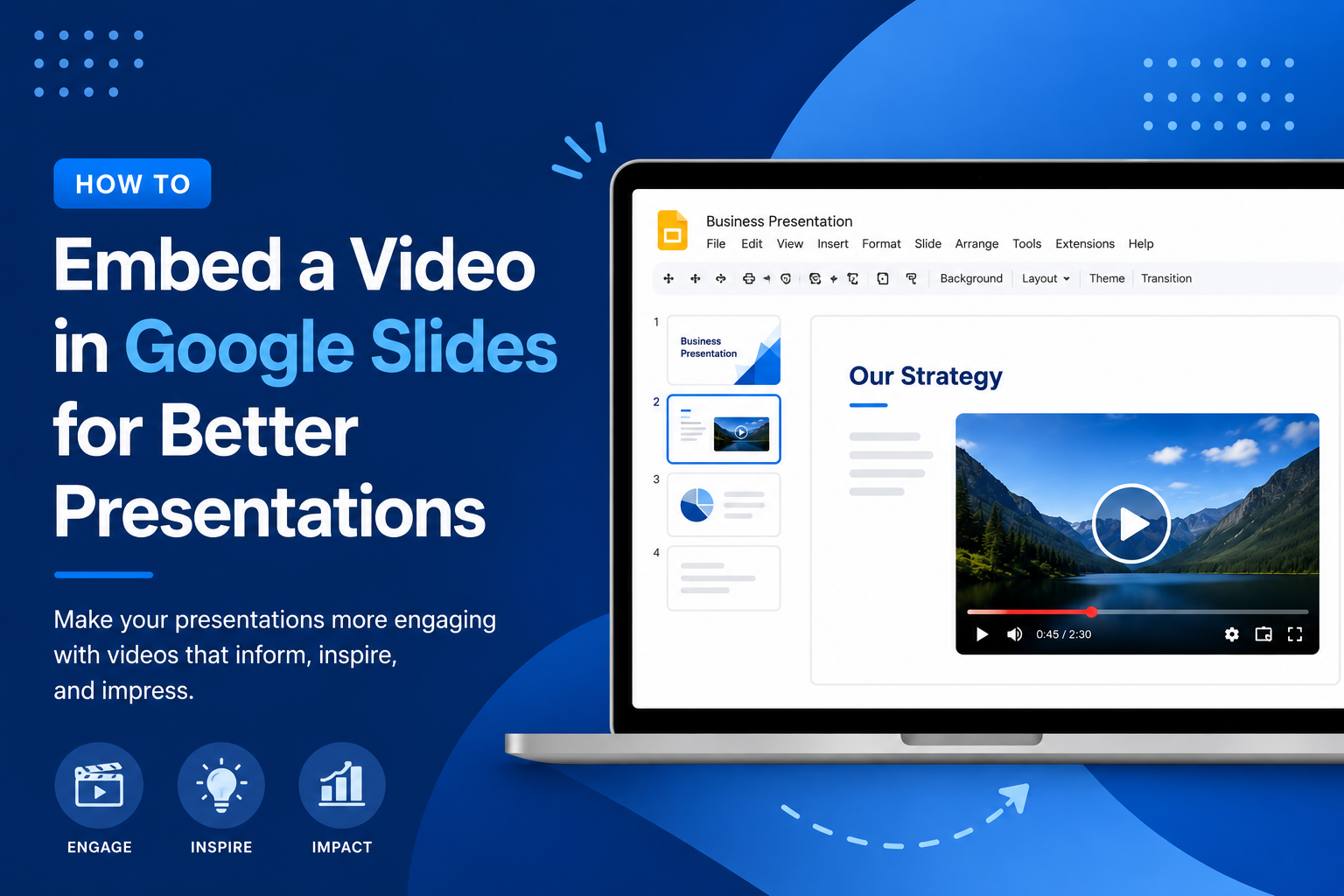
How to Embed a Video in Google Slides for Better Presentations


Video has a way of doing what bullet points simply cannot. It holds attention, adds context, and gives your audience something to lean into rather than tune out. If you have been building presentations that rely entirely on static slides, adding a video can change the entire feel of the room.
This guide walks you through exactly how to embed a video in Google Slides, covers the different methods available, and explains when to use each one. Whether you are presenting to a classroom, a boardroom, or a remote team, the process is straightforward once you know where to look.
Why Adding Video to Your Slides Actually Matters
Most presentations struggle with the same problem: too much text, not enough variety. Your audience reads ahead, zones out, or starts checking their phone. A well-placed video interrupts that pattern in the best possible way.
Video works especially well for product demonstrations, customer testimonials, training walkthroughs, and any moment where showing beats telling. It also signals preparation. When someone opens a presentation and sees embedded media that plays cleanly, it builds confidence before a single word is spoken.
The other benefit is pacing. A 60-second video clip gives you a natural pause, lets the content breathe, and gives you a moment to collect your thoughts before the next section.
What You Need Before You Start
Before you embed a video in Google Slides, a few things need to be in place.
You need a Google account with access to Google Slides. If you are working from a shared or managed account, check that third-party embeds are not restricted by your organisation’s settings.
For YouTube videos, you need the video URL. Public and unlisted videos both work. Private videos do not.
For videos stored on Google Drive, the file needs to be uploaded and accessible. If you are presenting with others, make sure the sharing permissions allow viewers to see the video, not just the file owner.
A stable internet connection matters too, particularly for YouTube embeds, which stream rather than load locally.
How to Embed a Video in Google Slides Using YouTube
This is the most common method and the one that works most reliably across devices.
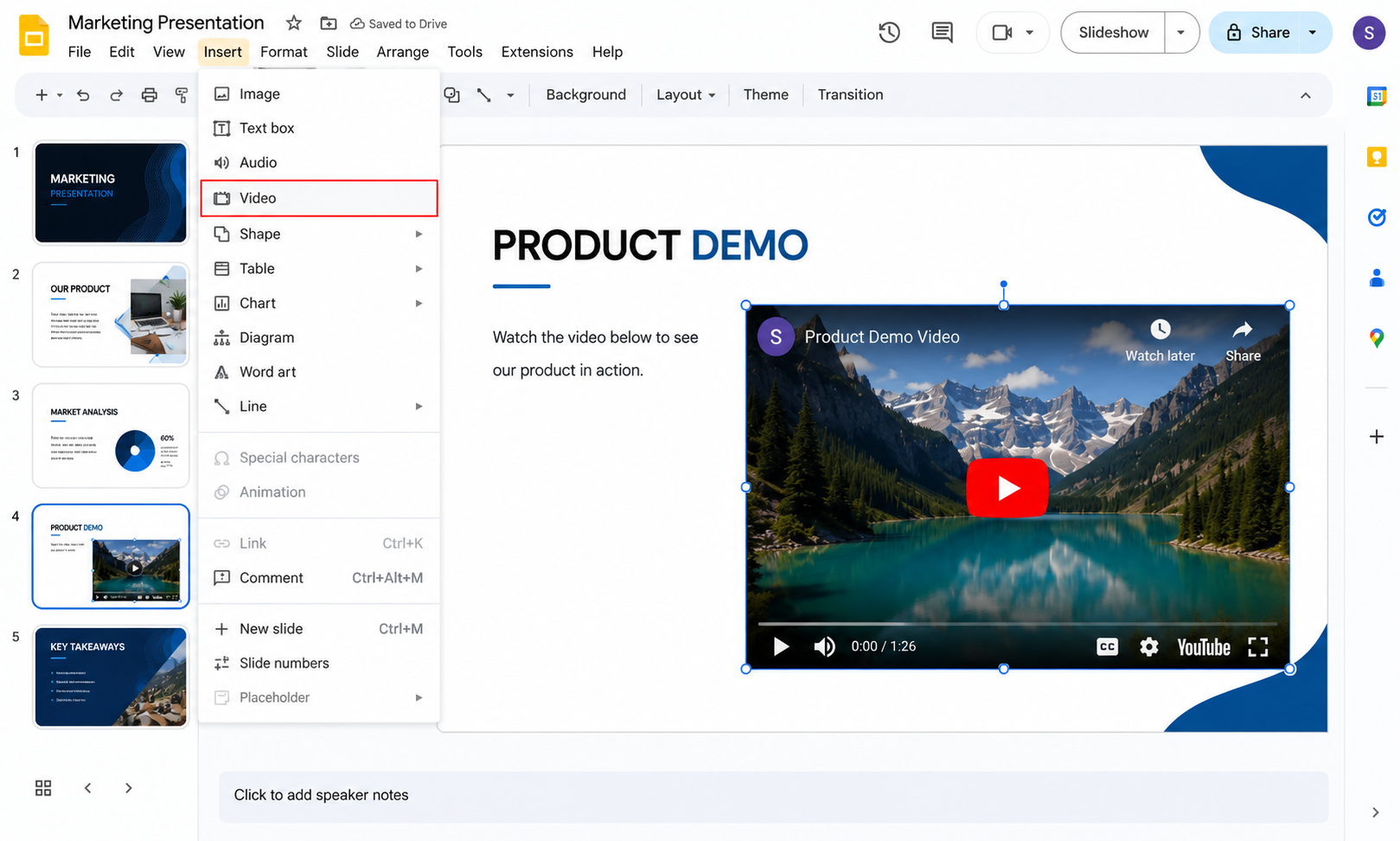
Open your Google Slides presentation and navigate to the slide where you want the video to appear. Click Insert in the top menu, then select Video from the dropdown.
A dialog box will appear with three tabs: Search, By URL, and Google Drive. If you already have the YouTube URL, click By URL and paste it into the field. Google Slides will generate a preview thumbnail. Click Select to place the video on your slide.
Once placed, you can resize and reposition the video frame like any other element. Click and drag the corners to adjust the size, and drag the frame itself to move it.
To set playback options, right-click the video and choose Video options from the menu. From here you can choose whether the video plays automatically when you reach that slide or only when you click it. You can also set a start and end time, which is useful if you only want to show a specific clip from a longer video.
Autoplay tends to work well for short clips and mood-setting openers. Manual play is better when you want control over the timing, especially in live presentations where questions might interrupt your flow.
How to Embed a Video from Google Drive
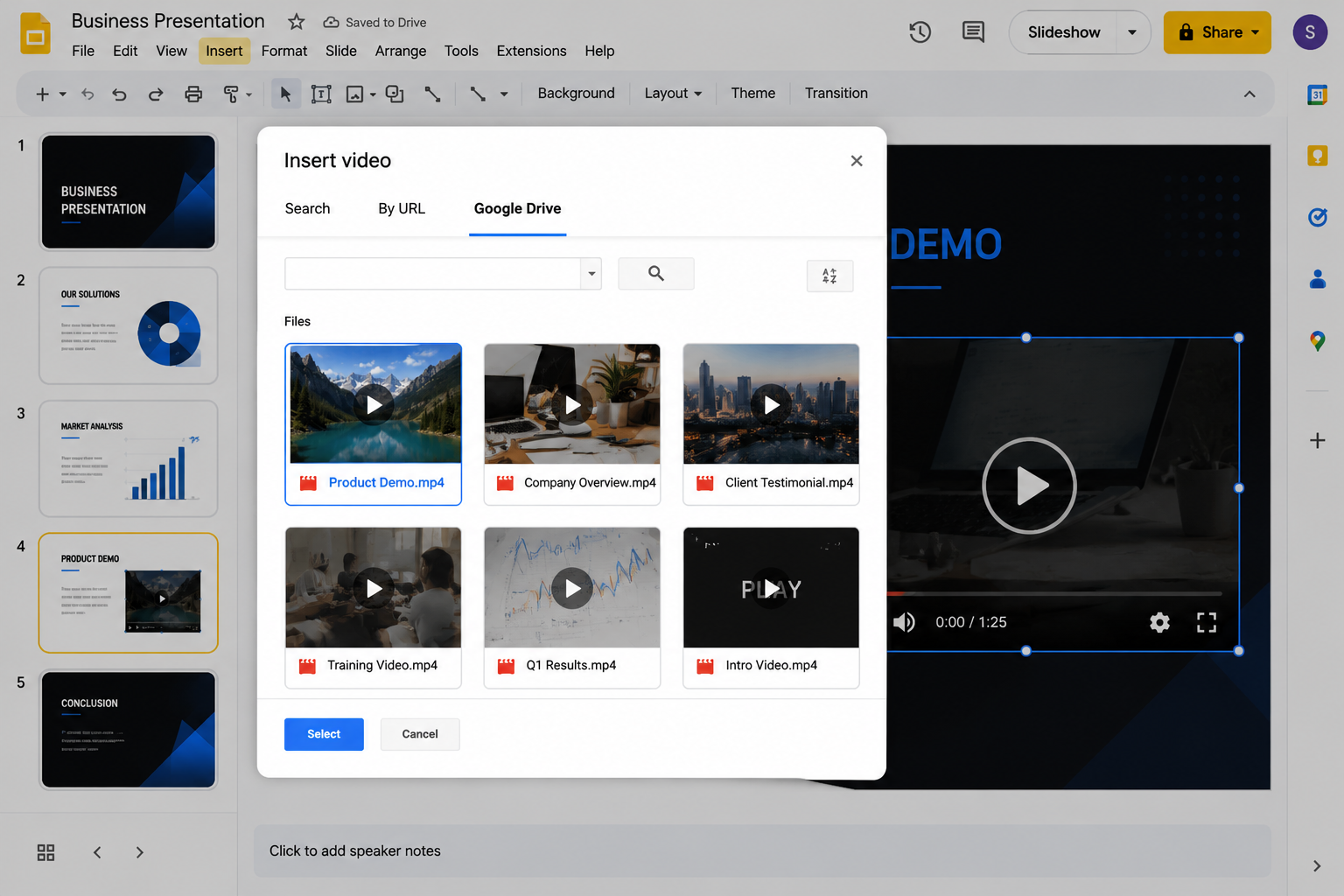
If your video is not on YouTube or you prefer to keep things within your own files, Google Drive is the next best option.
Start the same way. Go to Insert, then Video. This time, click the Google Drive tab. Your Drive will populate with recent files. You can also use the search bar at the top to find a specific file by name.
Select your video and click Select. It will appear on your slide the same way a YouTube embed does, with the same resizing and playback options available through the right-click menu.
One thing to watch: if you are presenting to an audience and they are viewing from a shared link, they may see a prompt asking them to request access if the Drive video is not set to be viewable by anyone with the link. To avoid this, check the sharing settings on the video file itself before the presentation.
Uploading vs Streaming: What Is the Difference?
Google Slides does not let you upload a raw video file directly into a slide the way PowerPoint does with locally embedded media. Every video in Google Slides either streams from YouTube or plays from Google Drive.
This is worth understanding because it affects how your presentation behaves offline. A YouTube embed requires an internet connection to play. A Google Drive video also needs connectivity, but if the Drive file is available offline and your device has synced it, it may play without a live connection depending on your setup.
If you regularly present in locations with unreliable Wi-Fi, it is worth testing playback beforehand. A slide with a video thumbnail that refuses to load is more distracting than not having a video at all.
Formatting the Video on Your Slide
Placement matters as much as the video itself. A video dropped in the centre of a cluttered slide looks accidental. A video framed properly within a clean layout looks intentional.
A few things that help:
Give the video space. Avoid cramming it alongside dense text. Let it occupy its own visual territory on the slide.
Use a consistent aspect ratio. Most videos are 16:9. If your slide is also 16:9 and you want the video to fill the slide, size it to match the slide dimensions. If you want it smaller, keep the same ratio to avoid distortion.
Add a brief label or heading above the video. One line is enough to tell the audience what they are about to watch. It removes guesswork and prepares them to pay attention.
If you use presentation templates, this step becomes much easier. A well-designed slide layout already has visual hierarchy built in. You are placing the video into a space that was designed to hold it, rather than fighting a structure built for text.
SlidesDepot offers designer-crafted Google Slides templates where the layouts are built with balance in mind. Instead of adjusting margins and repositioning elements from scratch, you start with slides that already work — and adding a video becomes a single focused decision rather than a multi-step formatting exercise.
How to Play a Video During a Live Presentation
During your actual presentation, click the video thumbnail to begin playback if you set it to play on click. If you set it to autoplay, it will begin as soon as the slide appears on screen.
To pause, click the video again. To skip forward or back, use the progress bar that appears at the bottom of the video frame when you hover.
One practical tip: if you are using Presenter View with speaker notes visible on your screen, the video plays in the presentation window, not in your notes window. Make sure your display settings are correct so the audience sees the slide, not your notes.
If the video stutters during playback, it is almost always a connection issue. Running a quick network test before the presentation starts can save a lot of stress on the day.
Common Problems and How to Fix Them
The video will not play. The most common reason is that the video is private on YouTube or the Drive file permissions are restricted. Check the source and adjust the sharing settings.
The video plays but has no sound. Check your device volume first, then confirm the video itself has audio. Some demo or screen-recording videos are exported without a soundtrack.
The video looks pixelated or blurry. This is a streaming quality issue. YouTube adjusts resolution based on your connection speed. Presenting on a faster network will resolve it.
The thumbnail shows but nothing plays. Refresh the slide and try again. If the problem persists, re-insert the video using the Insert menu and confirm the URL or Drive link is still active.
Pairing Your Video with the Right Slide Design
Embedding the video is only part of the equation. The slide it sits on still needs to look considered.
A clean, well-structured slide makes the video the focal point. A messy slide competes with it. This is where the visual foundation of your presentation matters.
If you are building a new presentation from scratch, SlidesDepot’s full deck templates give you a polished starting point. Each template is hand-crafted by designers not auto-generated and built to work on Google Slides without any conversion required. The library covers everything from pitch decks to educational and corporate formats, with new designs added weekly.
For specific layouts, individual slides from the SlidesDepot library let you drop a single designer slide into an existing presentation. If you need a clean video showcase slide, a section break, or a media-forward layout, you can add it without rebuilding everything around it.
A Note on Video Length and Slide Pacing
Keep embedded videos short unless the content genuinely requires length. Two to three minutes is a reasonable ceiling for most presentation contexts. Anything longer tends to disengage the room rather than hold it.
If you are working with a longer source video, use the start and end time options in the video settings panel to trim it to the most relevant section. This keeps the presentation moving and respects your audience’s time.
Think of the video as one beat in a longer rhythm. It punctuates the story you are telling it does not replace it.
Wrapping Up
Knowing how to embed a video in Google Slides is a small skill that makes a noticeable difference in how your presentations feel. It adds movement, context, and energy to slides that might otherwise blend together.
The process is quick once you have done it once: Insert → Video → choose your source → set playback options → format the frame. The technical steps take less than a minute. The design thinking around placement and slide structure takes a little longer, but that is where the real impact lives.
If your current slides feel like they need a design lift to match the quality of the content you are adding, SlidesDepot is worth exploring. The templates are built to work with Google Slides natively, and the library covers a wide range of formats and use cases.
Presentation design, simplified.
Published by SlidesDepot designer-crafted PowerPoint and Google Slides templates for people who want their presentations to look as good as the ideas inside them. Visit slidesdepot.com to explore the template library.


What Is an Executive Summary and When to Use It? Explore Ready to Use Templates
You’ve spent weeks building a detailed business plan, project proposal, or investor deck. The research is thorough, the strategy is solid, and the numbers make sense. But here’s the real challenge: the people who need to act on it don’t have the time. Senior executives spend an average of just four to five minutes reviewing a…

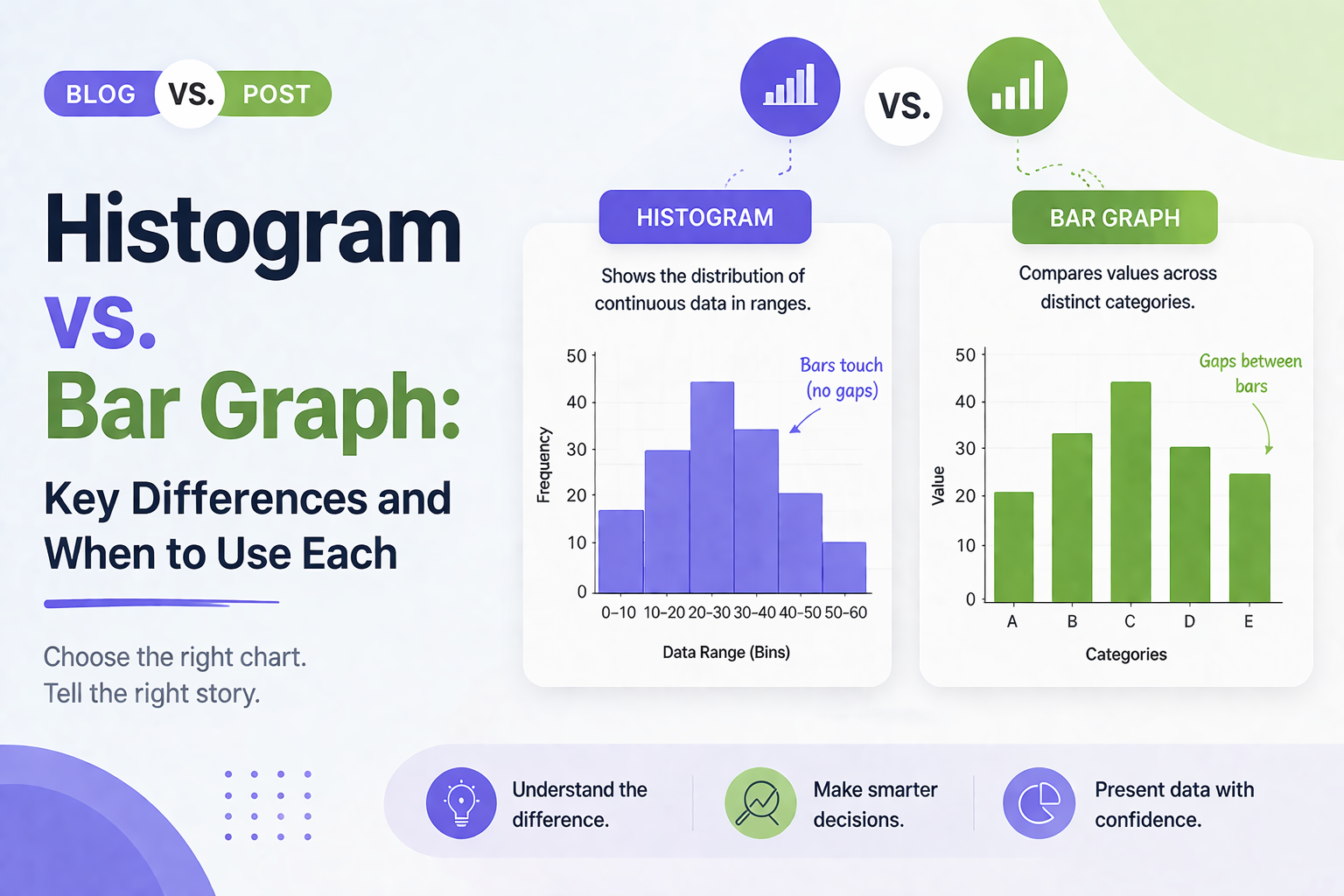
Histogram vs Bar Graph: Key Differences and When to Use Each
Histogram vs Bar Graph You have got data. You need a chart. You open PowerPoint or Google Slides and hover over the chart options. Then it hits you: should this be a histogram or a bar graph? They look almost identical, so it is easy to assume they are interchangeable. But they are not, and…
What Is a Sankey Diagram? How to Use It in PowerPoint Presentations
Some data tells a story the moment you see it. Flow data rarely does, not in a spreadsheet anyway. Numbers showing how budget moves across departments, how users drop off through a funnel, or how energy gets distributed through a system need a visual form before they start making sense. That is exactly what a…