How to Make a Good Google Slides Presentation Quickly and Effectively


Smart Hacks to Make Your Google Slides Presentations Better
Creating a presentation in Google Slides doesn’t have to be overwhelming or time-consuming. With the right approach, clear structure, and smart slide design, you can build a professional presentation that communicates your message clearly and keeps your audience engaged.
This guide explains how to make a good Google Slides presentation by focusing on how to start a presentation, how to organize slides effectively, and how to give a good presentation with clarity and confidence. It also shows how ready-made templates from SlidesDepot can support your workflow and save time without disrupting the reading or presentation experience.
Start Your Presentation with a Clear Opening
Every effective presentation begins with a strong opening. The first slide should clearly communicate the topic and purpose of your presentation. A simple, focused title works far better than a long or crowded introduction.
After the title slide, an agenda slide helps guide your audience through the presentation. It outlines the main sections and sets expectations from the beginning. When people know what’s coming next, they are more likely to stay engaged and follow your message.
Using professionally designed Google Slides templates can simplify this step. SlidesDepot templates often include clean title and agenda layouts that help presenters start with confidence while maintaining a polished look.
Use Practical Presentation Ideas to Keep Slides Focused
Strong presentation ideas are usually built around simplicity. Each slide should focus on one main idea so your audience can understand it quickly. When slides try to cover too much information at once, they become harder to follow and less effective.
Instead of long paragraphs, use short bullet points and clear headings. This makes slides easier to scan and allows you to explain ideas naturally during your presentation.
Visual structure also matters. Charts, icons, and diagrams help communicate information faster than text alone, especially when presenting data or processes. Clean, balanced layouts keep attention on the message rather than distracting design elements.
SlidesDepot provides structured slide layouts that guide spacing and alignment, making it easier to create slides that look professional even without design experience.
Organize Slides for Better Flow and Understanding
Knowing how to give a good presentation is closely connected to how well your slides are organized. A logical flow helps the audience stay engaged and prevents confusion.
Most presentations work best when they follow a simple structure:
- Introduction and agenda
- Main points or sections
- Supporting details or examples
- Clear conclusion
Grouping related ideas together and adding section breaks when needed helps the presentation feel smooth and intentional. Section divider slides can also give your audience a mental pause before moving on to the next topic.
Consistent design across slides improves flow as well. Using the same fonts, colors, and layout style creates a unified look. Starting with a single template from SlidesDepot helps maintain this consistency from the first slide to the last.
Focus on Clarity, Timing, and Delivery
Slides should support what you say, not compete with it. Keeping text short and readable allows you to explain ideas naturally instead of reading directly from the screen.
Timing is just as important. Planning your slides based on the length of your presentation helps you avoid rushing through important points or spending too much time on one section. Well-structured slide layouts make pacing easier and help you stay on track during delivery.
Practicing with your slides before presenting also helps identify areas where content can be simplified or reordered for better clarity.
Save Time with Ready-Made Google Slides Templates
One of the easiest ways to create a good Google Slides presentation quickly is to use ready-made templates. Instead of designing each slide from scratch, you can focus on refining your message and improving delivery.
SlidesDepot provides Google Slides templates for:
- Business presentations and meetings
- Marketing and pitch decks
- Educational and training content
- Project reports and progress updates
These templates include pre-built slides for titles, agendas, content sections, visuals, and conclusions. This makes it easier to assemble a complete presentation efficiently while maintaining a professional and consistent design.
Top Google Slides Templates to Boost Your Presentation Impact
Want to make your next presentation more engaging and visually compelling? SlidesDepot offers standout Google Slides templates that combine smart layouts with eye-catching design. These ready-to-use templates help you present complex ideas clearly and professionally — perfect for business, strategy, marketing, or analytics presentations.
Here’s how these templates help you:
- Turn your insights into visual stories
- Keep your slides consistent and structured
- Save time on design so you can focus on content
- Deliver with confidence and polish
Featured Google Slides Templates
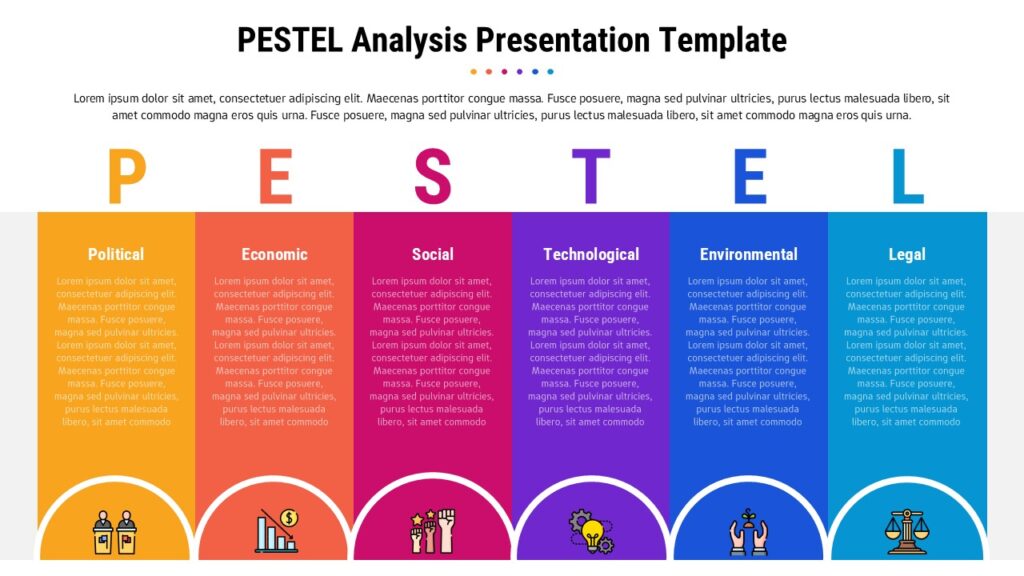
1.Colourful PESTEL Strategic Analysis Diagram Template
This template is ideal for presenting external business environment factors using the PESTEL framework. The color-coded sections help simplify complex strategic insights and make comparisons easy for audiences in meetings, reports, or academic presentations.
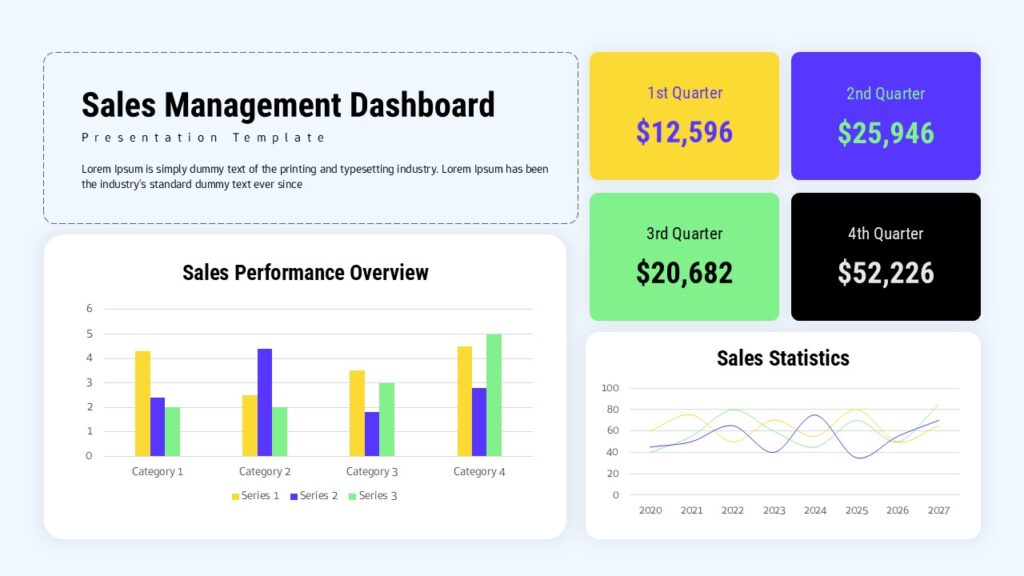
2.Sales Management Dashboard & Analytics Template
Designed for data-driven presentations, this template helps visualize sales KPIs, performance trends, and analytics in a clear dashboard layout. It’s perfect for reviews, forecasts, and executive summaries.
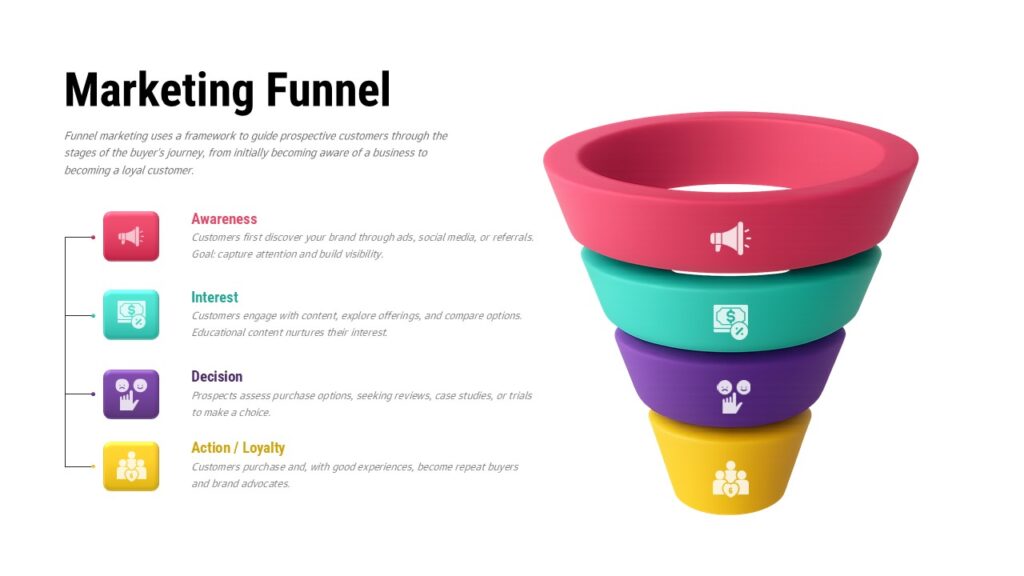
3.Colorful 3D Marketing Funnel Template
This visually engaging 3D funnel template helps explain marketing stages, lead nurturing, and conversion flows. The structured design makes it easier to communicate marketing strategies effectively.
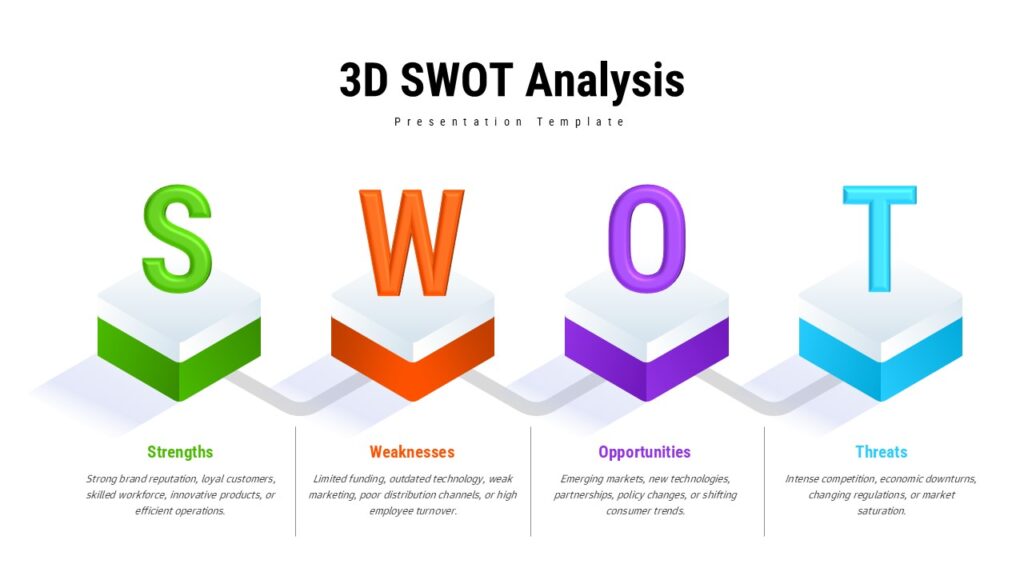
4.3D SWOT Analysis Template
A modern SWOT template that uses 3D visuals to present strengths, weaknesses, opportunities, and threats in a more impactful way. Suitable for strategy planning, business analysis, and presentations to stakeholders.
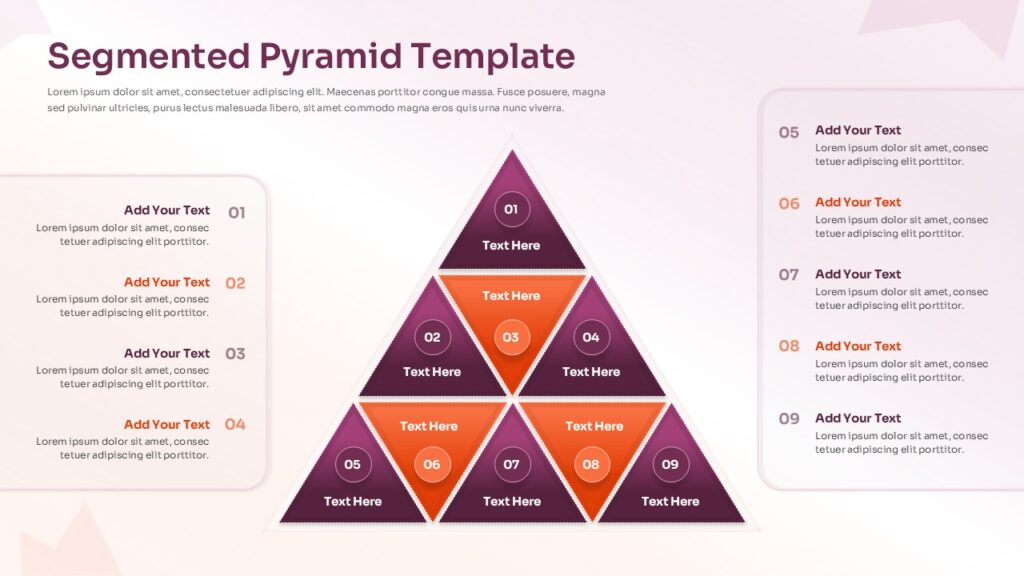
5.Segmented Pyramid Hierarchy Diagram Template
This pyramid-style template is useful for showing hierarchies, growth stages, layered processes, or organizational structures in a simple and visually balanced format.
Explore more professionally crafted Google Slides templates from SlidesDepot to create presentations that are clear, engaging, and visually consistent.
End Your Presentation with a Clear Message
A strong ending reinforces the key ideas you want your audience to remember. Summarizing your main points and clearly stating next steps or takeaways helps leave a lasting impression.
When slides are clear, consistent, and well-structured, presenting feels more natural and confident both for you and your audience.
Final Thoughts
Learning how to make a good Google Slides presentation is less about advanced design skills and more about clarity, structure, and preparation. By starting with a clear opening, using simple presentation ideas, organizing slides thoughtfully, and relying on well-designed templates from SlidesDepot, you can create effective presentations quickly and confidently.
If you want to improve slide quality and save time, exploring SlidesDepot’s Google Slides templates is a practical and reliable place to start.
What makes a Google Slides presentation look professional?
Clear spacing, consistent fonts, and focused content make a bigger difference than heavy design. Clean layouts help your message stand out.
How do I keep slides from looking crowded?
Limit each slide to one idea, use short phrases instead of sentences, and let white space do the work instead of adding more text
What’s the easiest way to improve slide flow?
Use an agenda at the start and group related points together. Repeating the same layout style across slides also improves flow instantly.
Can templates really save presentation time?
Yes. Templates remove layout decisions, so you spend less time designing and more time refining your message and delivery.

Trending Professional Slides for Modern Business Presentations
In today’s fast-moving business environment, presentations play a critical role in how ideas are shared, decisions are made, and deals are closed. Yet many professionals still struggle with slides that feel outdated, cluttered, or inconsistent. Boring visuals, unclear messaging, and time wasted on formatting often weaken otherwise strong content. This is where professional slides come…