How to Use and Insert Plus Minus Symbol (±) in PowerPoint & Google Slides


How to Insert the Plus Minus Symbol (±) in PowerPoint & Google Slides
You’re almost done with your slide deck. The charts look sharp, the layout is clean and then you realize you need the plus minus symbol (±). You scan your keyboard. It’s not there. So you start digging through menus, losing momentum, wondering why one tiny symbol has to be this much trouble. It’s a frustration a lot of presenters run into. The ± symbol shows up constantly in science, finance, engineering, and academic slides yet most people have never learned a fast, reliable way to get it in.
If you’ve been typing “+/-” and hoping for the best, this guide will fix that for good. You’ll learn every working method to insert the plus minus symbol in both PowerPoint and Google Slides on Windows and Mac so you can move on and finish your presentation.
What Is the Plus Minus Symbol and When Do You Need It?
The plus minus symbol (±) shows that a value can move in either direction up or down by a set amount. It represents a range, a tolerance, or a degree of uncertainty in your data.
Here’s where you’ll commonly use it in presentations:
- Science slides — measurement uncertainty (e.g., 37°C ± 0.5°C)
- Statistical reports — margins of error and confidence intervals
- Finance decks — projected variance (e.g., revenue of $2M ± 8%)
- Engineering presentations — manufacturing tolerances
- Academic research — standard deviation in experimental results
- Medical data slides — acceptable clinical measurement ranges
Leaving it out — or writing “+/-” as a workaround makes your slide look unfinished. Using the proper symbol signals accuracy and professionalism.
How to Insert the Plus Minus Symbol in PowerPoint
PowerPoint gives you several solid options. Pick the one that fits your working style.
Method 1: Keyboard Shortcut on Windows
The quickest method if you’re on a Windows PC with a numeric keypad:
- Click inside your text box.
- Hold Alt and type 0177 on the numeric keypad.
- Release Alt the ± symbol appears right away.
Note: This needs the numeric keypad (right side of keyboard), not the top number row. Make sure Num Lock is on.
Method 2: Insert Symbol from the Ribbon
Works on both Windows and Mac no shortcuts to memorize:
- Click your text box.
- Go to the Insert tab in the ribbon.
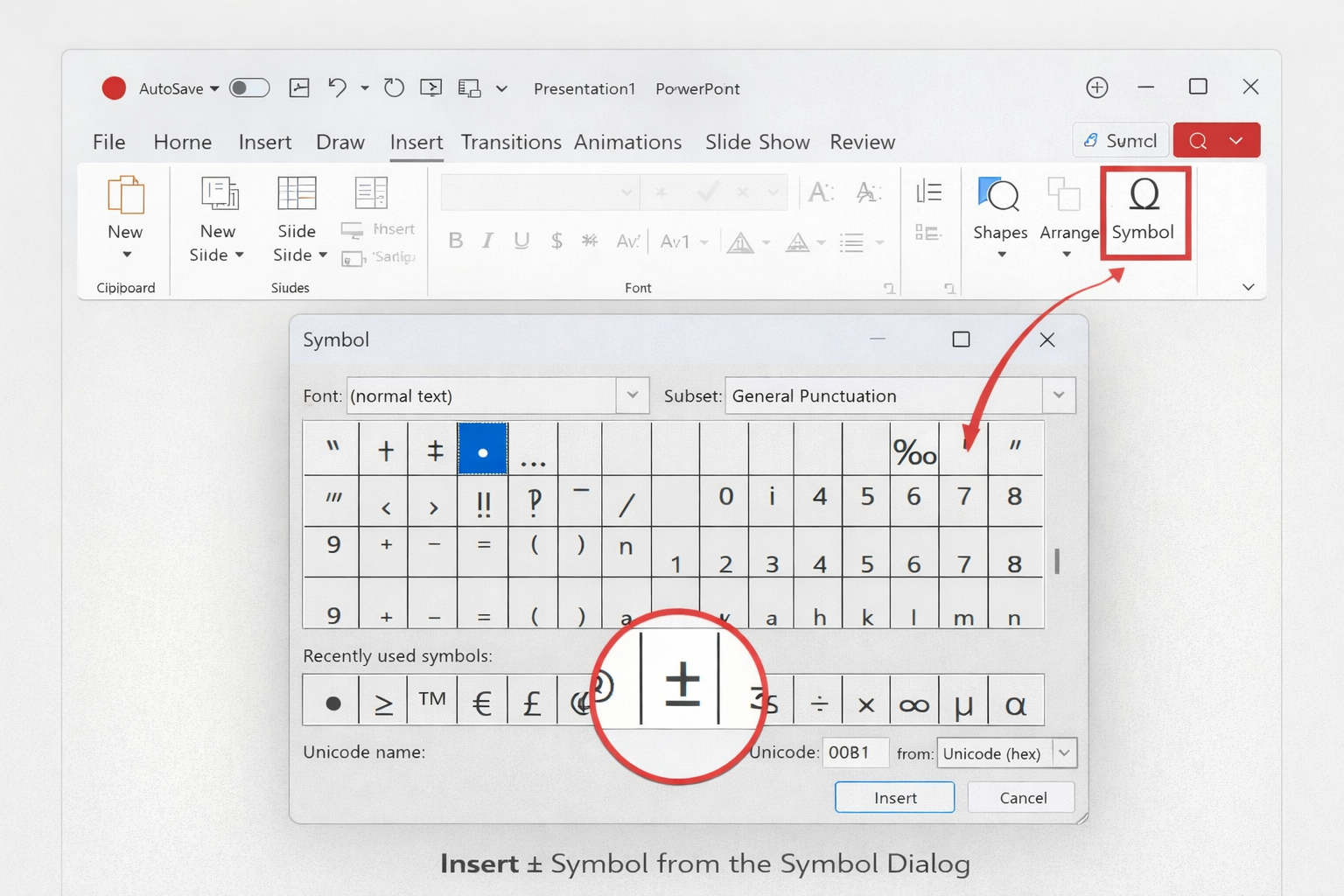
- Click Symbol on the far right.
- Set the font to (normal text) and subset to Latin-1 Supplement.
- Find ±, click it, then click Insert.
After the first use, PowerPoint saves ± in your Recently Used Symbols list so future insertions take just a few seconds.
Method 3: Unicode Entry (Windows Only)
A keyboard-friendly trick once you learn it:
- Place your cursor where the symbol should go.
- Type 00B1.
- Press Alt + X — PowerPoint instantly converts it to ±.
Method 4: Copy and Paste
The simplest option — and it works every time:
Copy this symbol → ± → Paste it into your slide.
Bookmark this page or save ± in a notes file so it’s always one click away.
Method 5: AutoCorrect Setup
If you use ± often, automate it:
- Go to File → Options → Proofing → AutoCorrect Options.
- In “Replace,” type +/-.
- In “With,” paste ±.
- Click Add → OK.
Now typing +/- will automatically produce ± every time. A two-minute setup that pays off over hundreds of slides.
How to Insert the Plus Minus Symbol in Google Slides
Google Slides has fewer shortcuts than PowerPoint, but the options it does offer are easy to use.
Method 1: Special Characters Menu
The most reliable method for any device:
- Click inside your text box.
- Go to Insert → Special Characters.
- Type plus minus in the search bar.
- Click the ± symbol — it drops straight into your text.
Method 2: Draw the Symbol
Inside the Special Characters panel, there’s a drawing box on the right. Sketch ± with your mouse and Google will identify it and show you the matching character. It sounds unusual — but it actually works well.
Method 3: Keyboard Shortcut on Mac
On macOS, this works system-wide in any app including Google Slides:
Press: Option + Shift + =
No menus needed. Instant result.
Method 4: Copy and Paste
Copy ± from this article and paste it directly into your Google Slides text box. It picks up your existing text formatting automatically — no extra adjustments needed.
Quick Reference: Plus Minus Symbol Methods
| Method | PowerPoint (Windows) | PowerPoint (Mac) | Google Slides |
| Keyboard Shortcut | Alt + 0177 (numeric keypad) | Option + Shift + = | Option + Shift + = |
| Symbol / Special Characters Menu | Insert → Symbol | Insert → Symbol | Insert → Special Characters |
| Unicode Entry | 00B1 then Alt + X | Not available | Not available |
| Copy and Paste | Supported | Supported | Supported |
| AutoCorrect | Supported | Supported | Not available |
Formatting the ± Symbol to Fit Your Slide
Getting the symbol in is step one. Making sure it looks right is step two.
Font Matching
When you paste ± from an external source, it sometimes carries a different font with it. Highlight the symbol and manually reset the font to match the rest of your text.
Size and Spacing
In footnotes or smaller callouts, reduce the symbol size by a point or two so it doesn’t look disproportionate. If it appears cramped next to numbers, add a small space on either side — some fonts render ± with tight default spacing.
Consistency Across Slides
If ± appears on multiple slides, make sure the size, color, and font weight are identical each time. Small inconsistencies like this are easy to overlook but noticeable to a careful audience.
Tips for Using ± Effectively in Data Presentations
Knowing how to insert the symbol is one thing. Using it well in context is another.
Don’t overcrowd your slide. If a slide is packed with numbers, tolerances, and ranges, your audience will struggle to find what matters. When you’re squeezing text to make it fit, that’s a sign to split the content across two slides.
Give your numbers context. A figure like ±0.3mm means very little without a sentence explaining whether that’s tight or loose. A short annotation turns raw data into something your audience can actually understand.
Use a template built for data. A well-structured layout takes the formatting work off your plate so you can focus on the content. If you’re building a technical, research, or financial presentation, browsing data-ready templates on SlidesDepot is worth a few minutes — many are free and designed specifically for number-heavy slides.
Free Templates to Get You Started
If your presentation involves data, charts, or technical content, starting with the right template makes everything easier. SlidesDepot offers free and premium PowerPoint and Google Slides templates built for professionals, researchers, students, and founders.
You don’t need to build from scratch. Browse the full collection at slidesdepot and find a layout that fits your content and audience — no design experience required.
Conclusion
The plus minus symbol (±) is a small detail that carries real weight in a professional presentation. It tells your audience exactly what your data means — and using it correctly reflects well on your work.
Now you have every method to insert it in PowerPoint and Google Slides, from quick keyboard shortcuts to the symbol menu and AutoCorrect setup. Pick the method that suits you and make it a habit.
And once your data is solid, make sure your slides look the part. Browse free presentation templates on SlidesDepot and give your content the design it deserves.
Frequently Asked Questions
What is the fastest way to type the plus minus symbol (±) in PowerPoint? On Windows, hold Alt and type 0177 on your numeric keypad. On Mac, press Option + Shift + =. Both work instantly inside any PowerPoint text box.
How do I add the ± symbol in Google Slides? Go to Insert → Special Characters, search “plus minus,” and click the symbol to insert it. Mac users can also press Option + Shift + = directly in the browser.
Why is Alt + 0177 not working in PowerPoint? This shortcut only works on the numeric keypad with Num Lock enabled — not the top-row number keys. If your laptop has no numpad, type 00B1 then press Alt + X, or use the Insert → Symbol menu instead.
Does the ± symbol display correctly when switching between PowerPoint and Google Slides? Yes. It’s a standard Unicode character (U+00B1) and renders correctly in both applications. You won’t lose it when converting or sharing files between the two platforms.
Can I make PowerPoint insert ± automatically when I type +/-? Yes — set up an AutoCorrect rule under File → Options → Proofing → AutoCorrect Options. Enter +/- in the Replace field and ± in the With field, then click Add. PowerPoint will handle the swap automatically from that point on.


How to Make a Good Google Slides Presentation Quickly and Effectively
Smart Hacks to Make Your Google Slides Presentations Better Creating a presentation in Google Slides doesn’t have to be overwhelming or time-consuming. With the right approach, clear structure, and smart slide design, you can build a professional presentation that communicates your message clearly and keeps your audience engaged. This guide explains how to make a…
How to Make Google Slides Vertical (Portrait Mode) – Step-by-Step Guide
Google Slides is one of the most popular presentation tools in the world, but it has one quirk that trips up a lot of users: it defaults to landscape (horizontal) mode. If you’ve ever tried to create a poster, resume, infographic, social media graphic, or flyer in Google Slides and felt frustrated by the horizontal layout, you’re not alone. The…

Top Google Slides Timeline Templates You Can Use for Any Project
Every project tells a story, and timelines are how you tell it visually. Whether you are pitching a product launch to stakeholders, walking students through a historical sequence, or mapping out a multi-phase marketing campaign, the right timeline slide can do more communicative work than three paragraphs of text ever could. The problem most people…