

What Is a Master Slide in PowerPoint? How to Edit It


If you have ever opened a PowerPoint file and wondered why every slide shares the same fonts, colors, and logo placement, the answer is the master slide. At SlidesDepot, we get asked about this feature almost every week, because it is one of the most misunderstood tools in PowerPoint, yet one of the most powerful. In this guide, we will explain exactly what a master slide is, why it matters, and how to edit it the right way.
What Is a Master Slide in PowerPoint?
A master slide, also called the slide master, is the parent slide that controls the design of every slide in your presentation. Think of it as the DNA of your deck. When you change a font, color, or logo on it, that change automatically applies to every slide connected to it. This is what makes it such a time saving tool for anyone building a presentation from scratch.
It sits above individual slide layouts. A single master slide can have multiple layouts underneath it, such as a title layout, a content layout, or a two column layout. All of these layouts inherit their base formatting from it, keeping your entire presentation consistent without repetitive manual work.
Why the Master Slide Matters for Presentation Design
Without one, you would need to format every single slide by hand. That means resizing text boxes, repositioning logos, and matching colors one slide at a time. A well built master slide removes that repetitive work entirely.
Here is why it is worth mastering:
- Consistency. Every slide pulls fonts, colors, and spacing from the same source, so nothing looks mismatched.
- Speed. Update the design once and the change ripples across the entire deck.
- Branding. Company logos, footers, and color palettes stay locked in place.
- Professionalism. A clean, structured layout instantly makes a presentation look more polished and intentional.
For teams that build decks often, a properly structured master slide is one of the best time investments you can make.
Where to Find the Master Slide in PowerPoint
Before you can edit it, you need to know where PowerPoint hides it. Here is how to get there:
- Open your PowerPoint file.
- Click the View tab on the ribbon.
- Select Slide Master from the Master Views group.
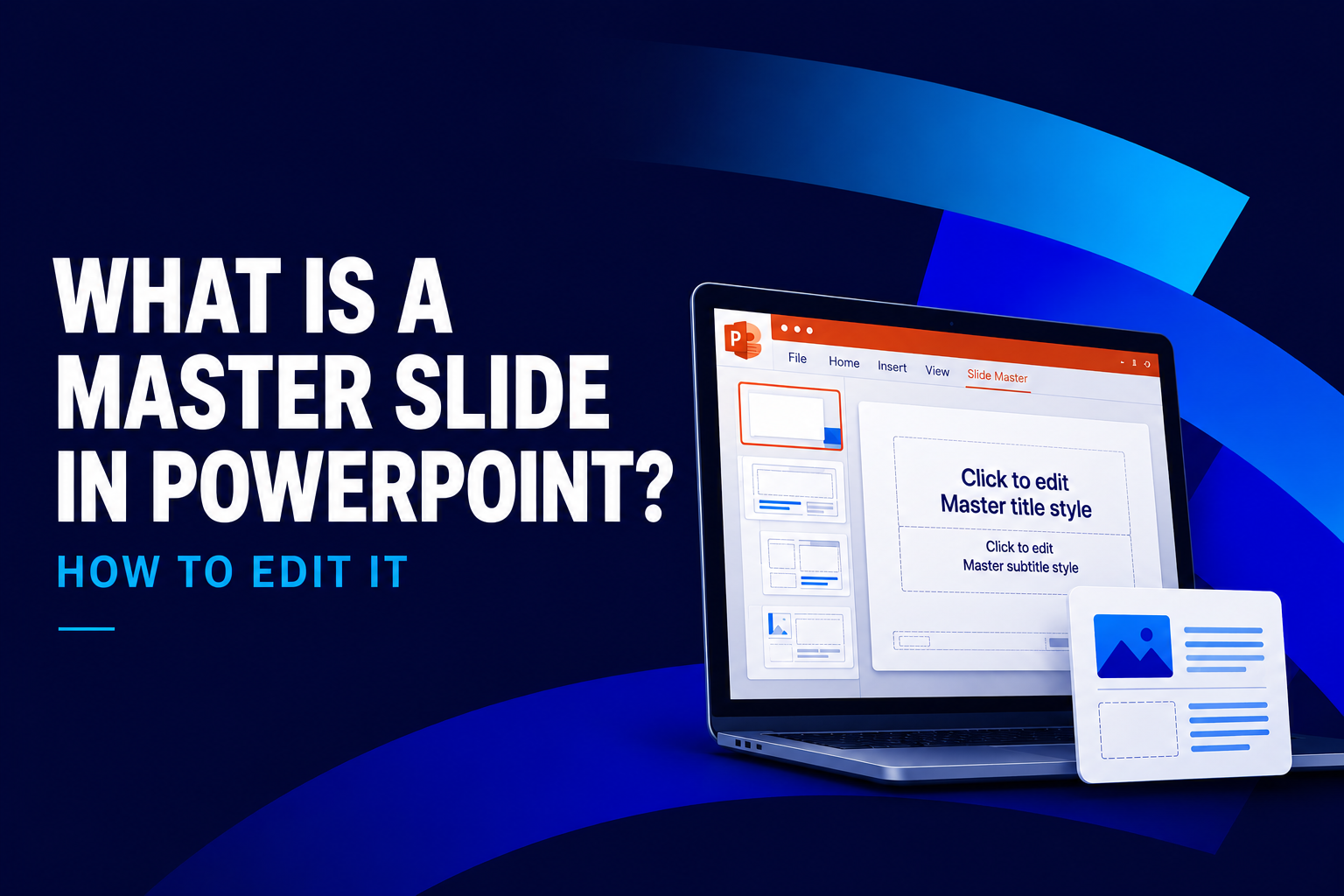
- PowerPoint will switch into Slide Master view, showing the largest thumbnail at the top of the left panel with its related layouts listed below it.
Once you are inside this view, you are editing the actual master slide rather than a single slide, so any change here spreads across the whole file.
How to Edit a Master Slide in PowerPoint
Editing it is straightforward once you understand the structure. Follow these steps to make changes that apply across your entire presentation.
Step 1: Enter Slide Master View
Go to View > Slide Master. The topmost, largest thumbnail in the panel controls every layout below it.
Step 2: Edit Fonts
Click into the title or body placeholder and change the font family, size, or color. Because this is the parent slide, the new font will apply to every layout and slide connected to it.
Step 3: Update Colors and Theme
Use the Colors dropdown under the Slide Master tab to change the theme colors. This updates backgrounds, accents, and text colors across the presentation in one move.
Step 4: Add a Logo or Footer
Insert your logo directly onto the parent slide, then position it in a corner. It will appear on every slide automatically, saving you from placing it manually on each one.
Step 5: Adjust Placeholders
Resize or reposition the title and content placeholders to change the default layout structure for the whole deck.
Step 6: Exit Slide Master View
Once it looks the way you want, click Close Master View on the ribbon. Your changes are now baked into every slide that referenced it.
Master Slide vs Slide Layouts: What Is the Difference?
People often confuse the master slide with slide layouts, but they serve different roles. It is the top level design source, while slide layouts are variations built underneath it, such as a title slide layout or a comparison layout. Editing the parent design changes formatting across all layouts, while editing a single layout only changes slides using that specific layout. Understanding this relationship makes it much easier to control your presentation design without breaking consistency.
Common Master Slide Mistakes to Avoid
Even experienced users run into trouble here. A few mistakes worth avoiding:
- Editing individual slides instead of the shared source. If you manually format each slide, you lose the whole benefit of a master slide.
- Deleting placeholders on it. This can break layouts that depend on them.
- Forgetting to check multiple layouts. A single master slide has several layouts attached, and each one may need its own review after a major update.
- Overcrowding the design. Keep it clean so it works well with every type of content you add later.
Tips for Using Master Slides with SlidesDepot Templates
Every template on SlidesDepot is built on a properly structured master slide, so you can customize colors, fonts, and branding in minutes instead of hours. If you download a PowerPoint template from SlidesDepot, simply open Slide Master view, adjust the design to match your brand, and every slide in the deck updates instantly. This is one of the biggest advantages of starting with a professionally designed foundation rather than building one from a blank file.
Whether you are preparing a business pitch, a sales deck, or a classroom presentation, a solid master slide from SlidesDepot gives you a head start and keeps your formatting clean from the first slide to the last.
Frequently Asked Questions
Can I have more than one master slide in a PowerPoint file? Yes. PowerPoint allows multiple parent slides in a single file, which is useful when you need different design systems within one presentation.
Does editing it affect slides I already created? Yes, as long as those slides are linked to the layouts underneath it, changes will apply automatically.
Can I reset a slide back to the original formatting? Yes. Right click the slide thumbnail and choose Reset to pull it back in line with the master slide.
Is this feature the same in Google Slides? Google Slides has a similar feature, but the tools and menu names differ slightly from PowerPoint’s system.
Final Thoughts on the Master Slide
The master slide is one of the most valuable tools in PowerPoint for anyone who wants a consistent, professional presentation without repetitive manual formatting. Once you understand how to edit it, you can update fonts, colors, logos, and layouts across an entire deck in just a few clicks. At SlidesDepot, every PowerPoint template is designed around a clean, editable foundation, so you can focus on your message instead of fixing formatting. The next time you open a new presentation, start there first, and the rest of your slides will follow with ease.


How to Duplicate a PowerPoint File on Windows and Mac
How to Duplicate a PowerPoint File on Windows and Mac Anyone who works with slide decks eventually needs a backup copy, a second version for a client, or a fresh file to edit without touching the original. If you have been searching for how to make a copy of a PowerPoint file, the good news…

SlidesDepot vs Slidesgo: Which Template Library Fits Your Next Presentation?
If you’ve ever searched “free PowerPoint templates,” you know the real challenge isn’t finding a template. It is finding the right one without wasting time. Slidesgo and SlidesDepot both show up often in those searches, and both offer solid, editable templates for PowerPoint and Google Slides. They just approach templates in different ways. Slidesgo is…
Build a PowerPoint Bubble Chart in Minutes
A bubble chart in PowerPoint is one of the most effective ways to show three variables in a single visual without cluttering your slide. At SlidesDepot, we build a lot of data driven templates, and bubble charts consistently come up as a request from users who need to compare performance, market position, or scale across…