How to Make a Winning Business Presentation



A strong business presentation can open doors. It can close a deal, secure funding, align a team, or shift how stakeholders think about your work. A weak one, no matter how good the underlying idea is, often gets forgotten before the meeting room door closes.
Making a compelling business presentation isn’t about being a design expert or a born public speaker. It comes down to a handful of principles that anyone can apply: the right structure, clean visuals, a clear message, and the confidence to deliver it. This guide walks you through all of it.
What Makes a Business Presentation Actually Work
Before diving into tactics, it helps to understand what separates presentations that land from those that don’t. Most forgettable presentations share the same problems: too much text, no clear narrative thread, slides that look rushed, and delivery that reads as unconfident or unprepared.
Presentations that work, on the other hand, tend to do three things well. They respect the audience’s attention by getting to the point quickly. They make the key message impossible to miss. And they look polished enough that the visuals support what’s being said, rather than compete with it.
None of this requires starting from a blank canvas every time. Most professionals who consistently deliver strong presentations rely on well-designed starting points that let them focus on content, not formatting.
Step 1: Define Your Core Message Before You Open Any Software
The single biggest mistake people make when preparing a business presentation is opening PowerPoint or Google Slides before they know what they’re actually trying to say.
Start with one sentence: What do I want my audience to think, feel, or do after this presentation? Everything else, the structure, the slides, the data you include, should serve that sentence.
If you’re pitching to investors, your core message might be: “This market is underserved, we’ve built the right solution, and now is the right time to fund it.” If you’re presenting a quarterly review, it might be: “We hit our targets, here’s why, and here’s what we’re prioritising next.”
Write that sentence down before you build a single slide. It will save you from scope creep, over-stuffed decks, and the common problem of slides that say a lot without actually saying anything.
Step 2: Structure Your Business Presentation Like a Story
Good presentation techniques share one thing with good storytelling: they follow a shape. Audiences respond to narrative structure instinctively, setup, tension, resolution. That framework maps onto almost any business context.
A reliable structure for most presentations looks like this:
Opening. Hook your audience immediately. A striking stat, a short anecdote, a provocative question, or a bold claim. Don’t open with an agenda slide or a company history timeline. Give them a reason to keep listening.
Context. Establish the problem, the opportunity, or the situation you’re addressing. This is where you earn credibility by showing you understand the landscape.
Core content. This is the substance: your findings, your proposal, your data, your plan. Organise this into three to five clear sections. Any more and you risk losing the thread.
Evidence. Support your main points with data, case studies, testimonials, or examples. Don’t just assert; demonstrate.
Call to action. End with clarity about what you want to happen next. A specific ask, a clear next step, a decision you need. Vague endings lose momentum.
This structure works just as well for a five-slide internal update as it does for a twenty-slide investor pitch. The proportions shift, but the shape stays the same.
Step 3: Design Slides That Support Your Message
Slide design is where a lot of business presentations fall apart, not because the content is bad, but because the visual execution undermines it. Cluttered slides, inconsistent fonts, mismatched colours, and walls of bullet points all send the same signal: this wasn’t worth the extra effort.
A few principles that make an immediate difference:
One idea per slide. If a slide needs a paragraph to explain it, split it. Each slide should communicate one clear point at a glance.
Cut the bullet points. Replace long bullet lists with visuals. A simple diagram, a comparison table, a bold statistic, a timeline. Visuals are processed faster and remembered longer.
Use whitespace intentionally. Empty space isn’t wasted space. It directs the eye, reduces cognitive load, and makes slides look more considered.
Keep fonts consistent. Two fonts maximum, one for headings and one for body text. Any more than that and the deck starts to look chaotic.
Match colours to your brand. If you’re presenting on behalf of a company, use the brand palette. If presenting as an individual, pick two or three colours and stick to them throughout.
This is where a well-designed template earns its value. A good template handles the visual system for you: the typography hierarchy, the colour palette, the layout grid. That frees you to focus on content. SlidesDepot offers a library of designer-crafted templates covering single infographic slides and full decks, all built to work on both PowerPoint and Google Slides without any format conversion.
Step 4: Use Data Thoughtfully, Not Exhaustively
Data gives your business presentation credibility. But data-heavy slides can do the opposite: spreadsheet dumps, overly complex charts, and tables with fifteen columns that nobody can read from across a room.
The goal isn’t to show everything you know. It’s to show the right things.
Effective presentation techniques for data involve leading with the insight rather than the numbers. “Revenue grew 34% year on year” as a headline, with the chart below as support. Use simple chart types that don’t require explanation. Call out the one number that matters most with a large, bold typographic treatment.
If you have complex data to share, consider separating it from the slides entirely. Include a detailed appendix or share a separate document. The presentation carries the headline findings; the supporting detail lives elsewhere.
Step 5: Match Your Template to the Context
Not every business presentation serves the same purpose, and your slide design should reflect that. A pitch deck for a startup has a different feel than a quarterly board update. A sales deck for enterprise clients reads differently from one aimed at small business owners.
Starting from a purpose-built template matters more than it might seem. A good template isn’t just a visual starting point. It’s a communication structure. The layout decisions, the slide sequence, the way information is prioritised, all of that is built into a well-designed template.
For a high-stakes investor meeting, look for pitch deck templates with a clean, confident visual language and clear sections for problem, solution, market size, traction, and ask. For internal strategy presentations, a more structured, data-forward layout tends to work better. For client-facing work, something warmer and story-driven often performs well.
The SlidesDepot template library covers all of these scenarios. It’s updated weekly, includes both PowerPoint and Google Slides formats, and has a free plan so you can get started without a budget conversation.
Step 6: Practise Your Delivery More Than You Think You Need To
Even a well-designed deck won’t save a poorly delivered presentation. Delivery is where everything comes together.
A few things that consistently make a difference:
Know your opening cold. The first sixty seconds set the tone for everything that follows. If you’re uncertain at the start, the audience calibrates to that. Rehearse your opening until it’s automatic.
Speak to the audience, not the screen. Slides are a visual aid, not a script. If you’re reading from them, you’ve already lost the room. Notes belong in the presenter view on your laptop, not on the slides themselves.
Pause deliberately. Most people rush when nervous. A deliberate pause after a key point gives the audience time to absorb it and signals confidence. It feels longer to you than it does to them.
Anticipate questions. Think through the three most likely objections or questions and prepare clear, concise answers. Nothing builds credibility faster than handling a tough question without flustering.
Record a rehearsal. Watch it back once. You’ll notice filler words, pacing issues, and moments where your energy drops that you simply can’t catch in the moment.
Step 7: Get the Technical Details Right
Strong business presentation skills won’t help if the file doesn’t open properly, the fonts render incorrectly, or the resolution looks blurry on the conference room screen.
Run through this checklist before any presentation:
- Test the file on the device you’ll actually be presenting from
- Confirm the aspect ratio matches the screen (16:9 is standard for most setups)
- Embed fonts if you’re using anything non-standard
- Check that any videos or animations play correctly
- Have a PDF backup ready in case the live file causes issues
Working across PowerPoint and Google Slides is common in team environments where people use different tools. Format compatibility can cause real headaches when files don’t translate cleanly. Templates built natively for both platforms remove that problem entirely.
Final Thought
The principles in this guide, clear message, solid structure, clean design, thoughtful data use, and confident delivery, apply to every presentation regardless of context or industry. None of them require advanced skills. They require intention and a bit of preparation.
A well-chosen template handles a significant part of the visual work so you can spend your preparation time on the parts that actually determine whether a business presentation succeeds: what you say, how you say it, and why it matters to the people in the room.
Quick Reference Checklist
Before you present:
- Core message defined in one sentence
- Structure follows: hook, context, content, evidence, call to action
- One idea per slide, minimal bullet points
- Consistent fonts, colours, and layout throughout
- Data visualised clearly, not presented as raw tables
- Opening rehearsed until automatic
- File tested on the presentation device
- PDF backup ready
Looking for presentation templates that work on both PowerPoint and Google Slides? SlidesDepot has a free plan and a library of designer-crafted templates updated weekly.


10 Best Table of Contents Slide Templates for PowerPoint in 2026
A strong table of contents slide does more than list your sections, it signals to your audience that your presentation is organised, intentional, and worth their attention. It sets the pace, reduces confusion, and gives every viewer a mental map before the first content slide even appears. Whether you are building an investor pitch deck, a…
What Is a Bar Graph Used For? 10 Bar Graph Examples Across Industries
Every business runs on data, but data alone does not persuade anyone. When you are presenting to stakeholders, pitching a strategy, or reporting on quarterly performance, your audience needs to understand your numbers quickly and confidently. That is exactly why knowing what is a bar graph is one of the most practical skills you can develop as…

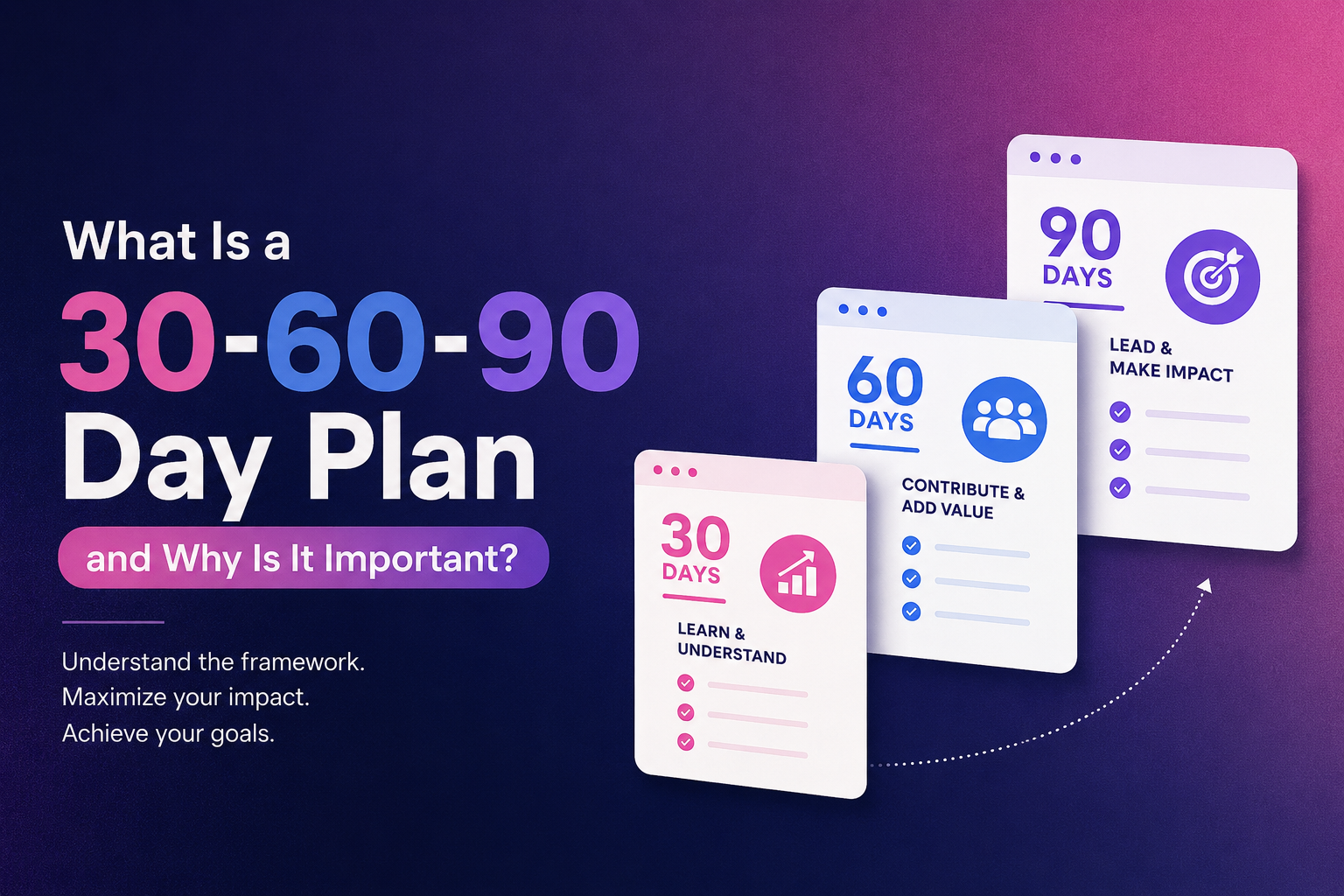
What Is a 30-60-90 Day Plan and Why Is It Important?
Starting something new, whether it is a job, a project, or a personal goal, often comes with a simple question: where do I even begin? A 30-60-90 day plan is one of the easiest ways to answer that question. It breaks down the first three months into three clear stages, so you always know what…