Google Classroom Guide: Using PowerPoint and Google Slides for Learning


Google Classroom has become one of the most widely used tools for running a classroom online, and presentations are at the centre of most of what happens inside it. This SlidesDepot guide covers what Google Classroom actually is, how it works day to day, and how PowerPoint and Google Slides each behave once a presentation is uploaded, so lessons run smoothly instead of getting stuck on a file that will not open the way it should.
What Is Google Classroom
Google Classroom is a free platform from Google that gives teachers a single place to post assignments, share materials, collect student work, and manage grades. It is built on top of the wider Google Workspace, so every file posted in Classroom, whether it is a document, a spreadsheet, or a presentation, is actually stored in the class’s shared Google Drive. Students join a class using a code or an invite link, and from there they see a stream of posts similar to a social media feed, along with a separate view for assignments and grades.
How Google Classroom Works
At a basic level, a teacher creates a class, invites students, and then posts one of a few content types: an announcement, a piece of material for reference, or an assignment with a due date. Each post can include text, a link, or an attached file. When a file is attached, Classroom automatically creates a matching folder in Google Drive to keep everything organized by class. Assignments show up on a grading page where the teacher can see each student’s submission, leave comments directly on the file, and assign a grade that syncs back to the student’s view. This structure is what makes Classroom useful for presentations specifically, since a slide deck can be posted as reference material one week and reused as an editable assignment template the next.
Using PowerPoint Presentations in Google Classroom
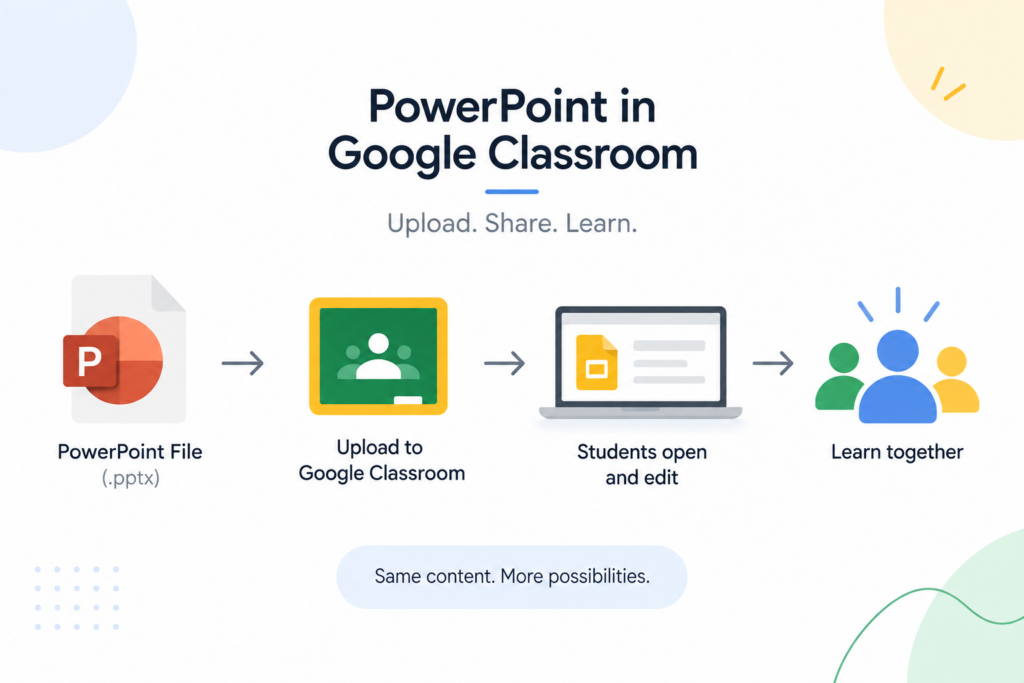
A PowerPoint file (.pptx) can be attached to any Classroom post exactly as it is. Once uploaded, Classroom stores the file in Drive and gives students the choice to open it in PowerPoint itself or preview and edit it as Google Slides. This makes PowerPoint a good starting format for teachers who build lessons offline, work from an existing library of decks, or need features specific to PowerPoint, such as certain animation types or Design Ideas. For an individual assignment built from a PowerPoint file, use the “Make a copy for each student” sharing setting so each student receives their own editable version instead of one shared file that everyone edits at once.
Using Google Slides Presentations in Google Classroom
Google Slides is a native Google file, which means it integrates with Classroom without any conversion step. Multiple students can edit the same Slides file at the same time, comments can be left directly on individual slides, and Classroom’s version history shows exactly what each student changed and when. This makes Slides the stronger choice for group projects, collaborative note-taking decks, or any assignment where real-time editing matters. A PowerPoint file can be converted to Slides at any point by uploading it to Drive, right clicking it, and selecting “Open with Google Slides,” which creates an editable copy while leaving the original PowerPoint file untouched.
PowerPoint vs Google Slides in Classroom: Which to Use
Neither format is strictly better, since they are suited to different parts of a lesson. PowerPoint works well for polished, view-only material such as a lecture deck, or for teachers who prefer designing slides outside of a browser. Google Slides works better once collaboration is involved, whether that means students co-editing a group project or a teacher leaving comments on individual student work. Many teachers end up using both: PowerPoint for building and storing a master version of a lesson, and Google Slides for the version students actually interact with inside Classroom.
Tips for Better Classroom Presentations
A few habits make presentations easier to manage across a term. Keep file names consistent, such as “Unit3_Lesson2_Topic,” so they are easy to find later in both Drive and Classroom’s Class folder. Post reference slides as “Material” rather than “Assignment” so they do not clutter the grading view. Check a converted file for formatting changes before assigning it, since custom fonts, some animations, and precisely placed text boxes can shift slightly when moving between PowerPoint and Slides. Add alt text to images and keep body text at a readable size, since presentations often serve as a student’s only record of a lesson after class ends.
Conclusion
Google Classroom works well with both PowerPoint and Google Slides once the differences between them are clear, and the right choice usually comes down to whether a lesson needs individual work, view-only reference material, or real-time collaboration. Getting the sharing settings and file format right the first time saves a lot of back-and-forth once an assignment is live. SlidesDepot’s PowerPoint templates are built to upload and convert cleanly into Classroom if you want a starting point rather than a blank slide.
Is Google Classroom the same as Google Slides?
No. Google Classroom is a platform for managing a class, posting assignments, and grading work, while Google Slides is the presentation tool used to build the actual slide decks shared inside it.
Can students edit a PowerPoint file directly in Google Classroom?
Not in its native format. Students can view or download the PowerPoint file, but real-time collaborative editing only works once it has been converted to Google Slides.
What is the best sharing setting for a graded individual assignment?
Not in its native format. Students can view or download the PowerPoint file, but real-time collaborative editing only works once it has been converted to Google Slides.
Does converting PowerPoint to Google Slides change the formatting?
Basic text and layout usually convert cleanly, but custom fonts, some animations, and precisely positioned elements can shift slightly, so it is worth checking the converted file before assigning it.


Presentation Techniques to Engage Your Audience
Creating engaging PowerPoint presentations is a challenge many professionals face. Often, presentations fail not because the ideas are weak, but because slides are cluttered, visually inconsistent, or difficult to follow. This is where strong presentation techniques make a real difference. By combining clear structure, thoughtful visual design, and audience-focused delivery, you can create engaging PowerPoint…

Marketing Fundamentals: Core Concepts and Ready-to-Use Strategy Templates
In today’s highly competitive business environment, companies are constantly experimenting with new platforms, advertising channels, and digital tools. While innovation is important, long-term success rarely comes from tactics alone. Sustainable growth is built on a strong strategic base and that base is defined by Marketing Fundamentals. Marketing fundamentals provide the structure that guides every marketing decision. They shape…

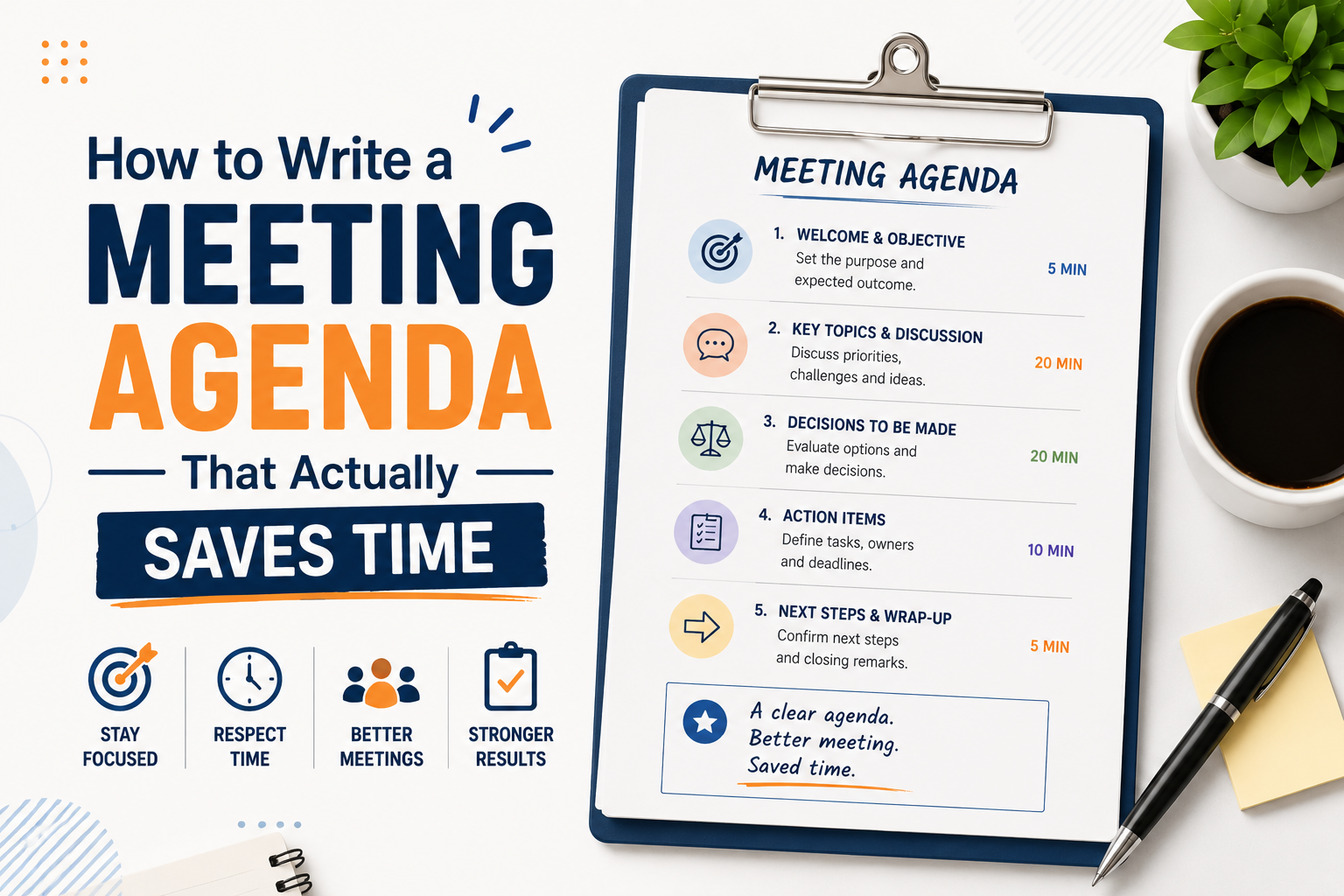
How to Write a Meeting Agenda That Actually Saves Time
Most meetings fail before they start. Not because of the wrong attendees or a bad time slot, but because there was no clear agenda, or the one that existed was too vague to be useful. Learning how to write a meeting agenda properly is one of the simplest things you can do to make your…