PPT Meaning: Beginner Guide + Free PPT Templates from SlidesDepot
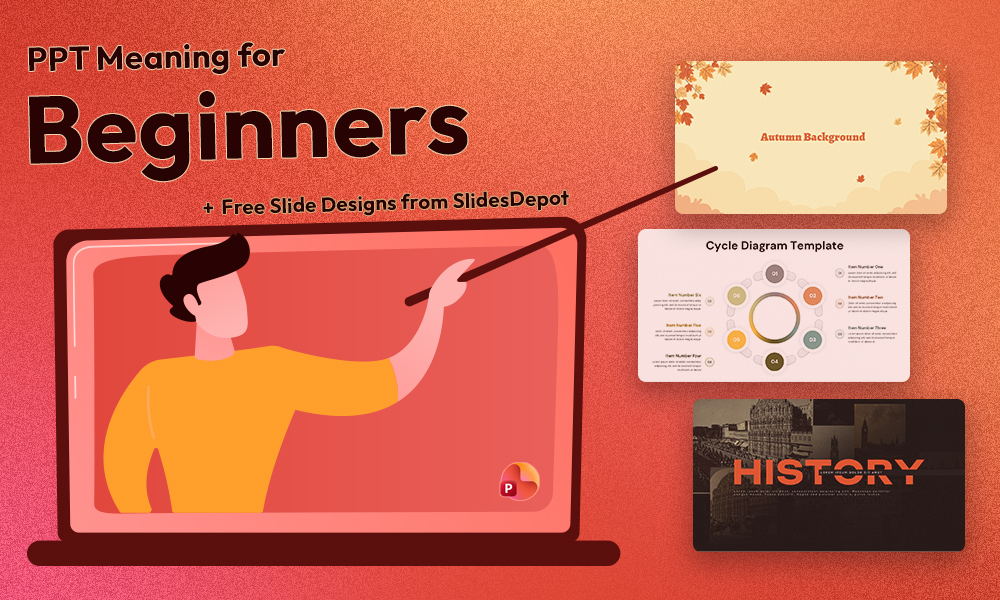


If you’ve ever been asked to create a PPT for school, college, or work, you might wonder what exactly PPT means. For beginners, this confusion is common, especially if you’re new to presentations or digital tools.
Understanding the PPT meaning is the first step toward creating clear, organized, and professional presentations. This beginner-friendly guide explains what PPT is, how it works, why it’s so popular, and how you can create effective slides using free templates from SlidesDepot—even with no design experience.
What Does PPT Mean?
PPT stands for PowerPoint Presentation. It is a file format created using Microsoft PowerPoint, one of the most widely used presentation tools in the world.
When someone asks you to “send a PPT” or “make a PPT,” they are referring to a presentation file (usually with a .ppt or .pptx extension) that contains information arranged into slides. These slides can include text, images, charts, icons, and other visual elements.
PPT files are commonly used in:
- Schools and colleges
- Business meetings and client presentations
- Conferences and seminars
- Training sessions and webinars
Because of their visual and structured format, PowerPoint presentations make information easier to understand and remember.
Why Are PPT Presentations So Popular?
PowerPoint presentations have become a standard communication tool because they offer several advantages:
- Visual communication: Slides combine text with visuals, making complex ideas easier to explain
- Structured organization: Each slide focuses on one key idea, helping audiences follow along
- Professional appearance: Well-designed slides create a polished and credible impression
- Easy sharing: Files can be emailed, shared via cloud platforms, or presented directly
- Cross-platform compatibility: PPT files work on Windows, Mac, browsers, and mobile devices
These benefits explain why learning what PPT stands for is useful for students, professionals, and educators.
How Does a PPT Presentation Work?
A PPT presentation consists of multiple slides arranged in a logical order. Most presentations follow a simple structure:
- Title slide: Introduces the topic and presenter
- Content slides: Present key points using text, images, charts, or videos
- Conclusion slide: Summarizes the main ideas or outlines next steps
This structure helps guide the audience from introduction to conclusion without confusion.
How to Create a PPT Presentation
Creating a PPT is straightforward, even for beginners:
- Open Microsoft PowerPoint or Google Slides
- Choose a blank presentation or select a ready-made template
- Add content using titles, bullet points, images, and charts
- Save the file in .ppt or .pptx format and review it before presenting
Common Challenges Beginners Face When Creating PPTs
Even after understanding the basics, beginners often struggle when creating their first presentation.
1. Starting From a Blank Slide
A blank slide offers no guidance on layout, colors, or fonts, which can feel overwhelming.
2. Poor Design Choices
Using too many fonts, bright colors, or excessive text can make slides look cluttered and unprofessional.
3. Time-Consuming Formatting
Aligning elements, adjusting spacing, and keeping slides consistent takes time.
4. Lack of Visual Hierarchy
Without clear headings and spacing, audiences may not know which information matters most.
How PPT Templates Make Presentations Easier
PPT templates solve many beginner problems. A template is a pre-designed set of slides that includes:
- Professional layouts and color schemes
- Consistent fonts and formatting
- Placeholders for text, images, and charts
- Ready-made slide designs for different purposes
Instead of designing from scratch, you replace the placeholder content with your own. This saves time and keeps your presentation clean and professional.
Templates are especially useful for beginners because they remove guesswork and reduce design stress.
Free PPT Templates from SlidesDepot
SlidesDepot offers free, high-quality PPT templates for students, professionals, and educators. The templates are designed to be easy to use and visually clear.
Popular Free Templates from SlidesDepot
Quarterly Business Report Dashboard Template
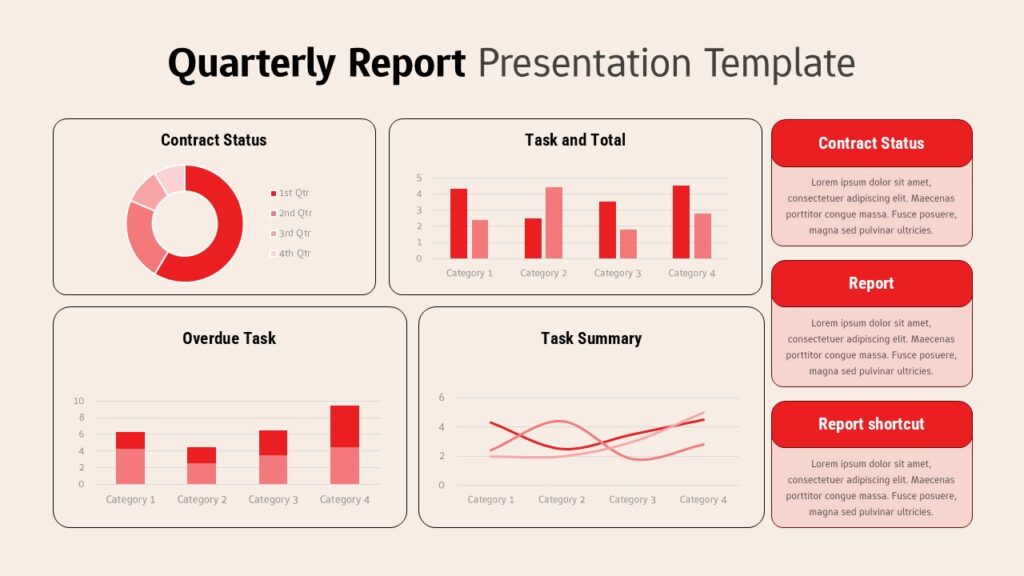
Ideal for presenting KPIs, performance metrics, and quarterly insights with clean, professional dashboard-style slides.
Career Path Growth Visualization
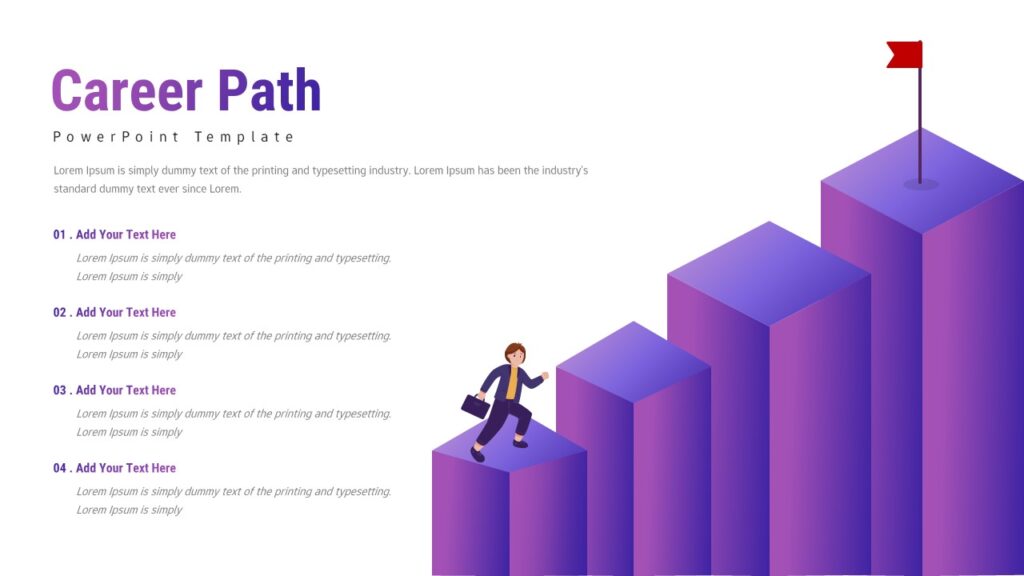
Useful for HR presentations, career planning, employee training, and motivational sessions.
Six-Step Cycle Diagram
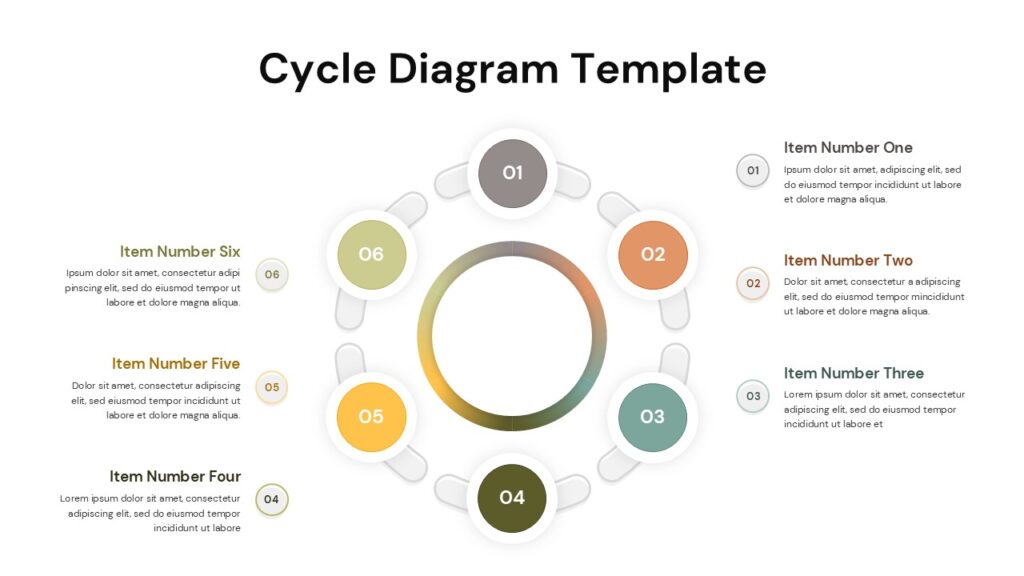
Helpful for explaining continuous processes, workflows, and recurring systems.
Curved Roadmap Presentation
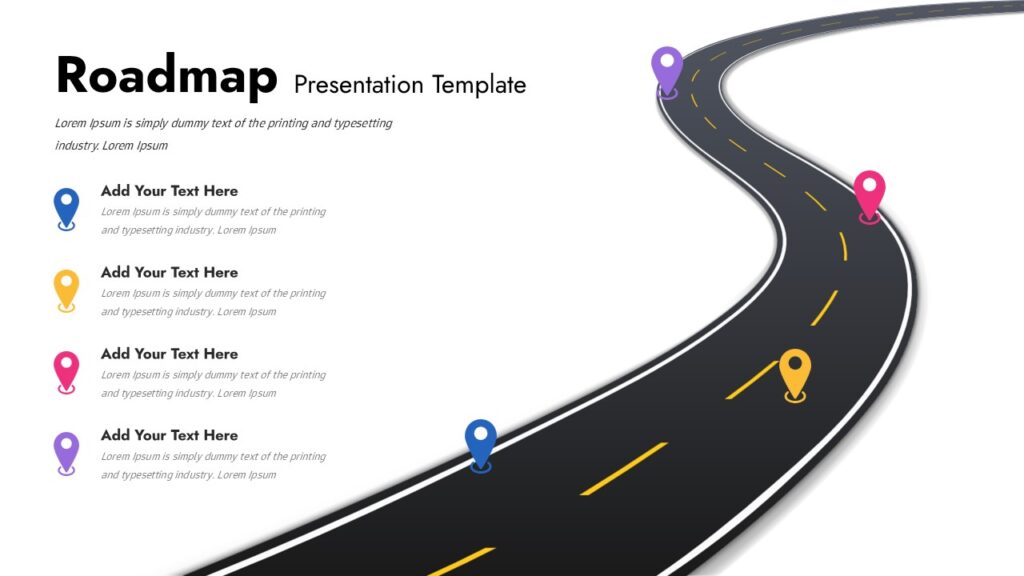
Suitable for project timelines, product launches, and strategic planning.
Simple Flowchart Process Diagram
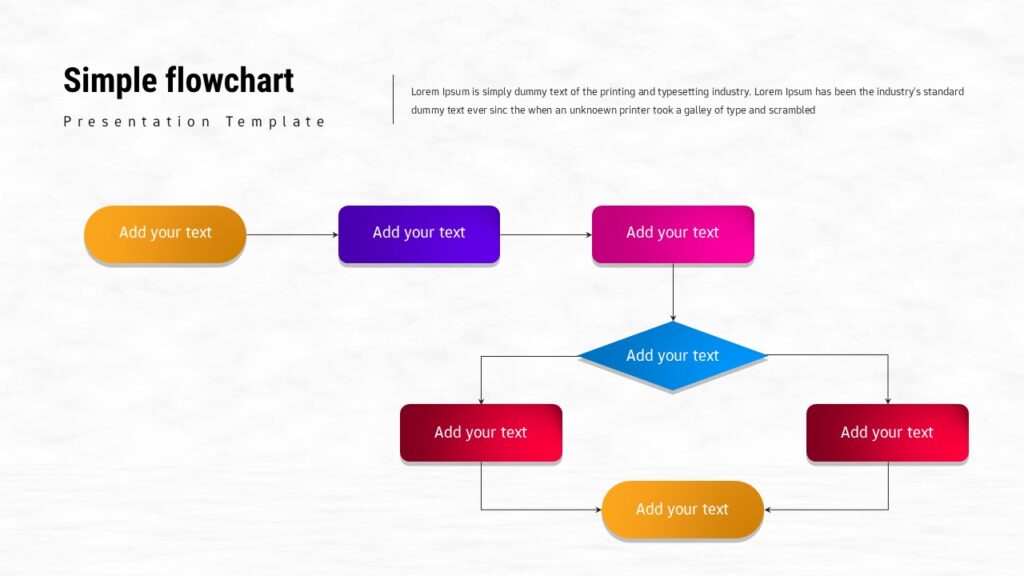
Best for workflows, decision-making processes, and step-by-step explanations.
You can explore more templates here:
All templates work with PowerPoint and Google Slides and are available for instant download.
How to Use SlidesDepot Templates
Creating a presentation with SlidesDepot templates is simple:
- Visit SlidesDepot and browse templates by category or style
- Download the template in PPT format
- Open and customize it in PowerPoint or Google Slides
- Review and present, or export your slides as a PDF
Tips for Making Better PPT Presentations
Even with a good template, these best practices can improve your slides:
- Keep text minimal and use bullet points
- Use high-quality images and icons
- Maintain consistent fonts and colors
- Avoid overcrowding slides
- Practice your presentation delivery
Final Thoughts
Understanding the PPT is the foundation for creating effective presentations. With the right knowledge and the help of free PPT templates from SlidesDepot, anyone can create professional-looking slides—even without design skills.
Whether you’re a student, teacher, or working professional, you now have what you need to start creating better presentations with confidence.


How to Add Audio to Google Slides (Step-by-Step Guide)
How to insert audio into google slides Want to make your presentation more engaging? Adding audio to your slides – whether it’s a voiceover narration, background music, or a sound effect – can turn a flat deck into a memorable experience. In this guide, the SlidesDepot team walks you through exactly how to add audio to Google Slides, step…
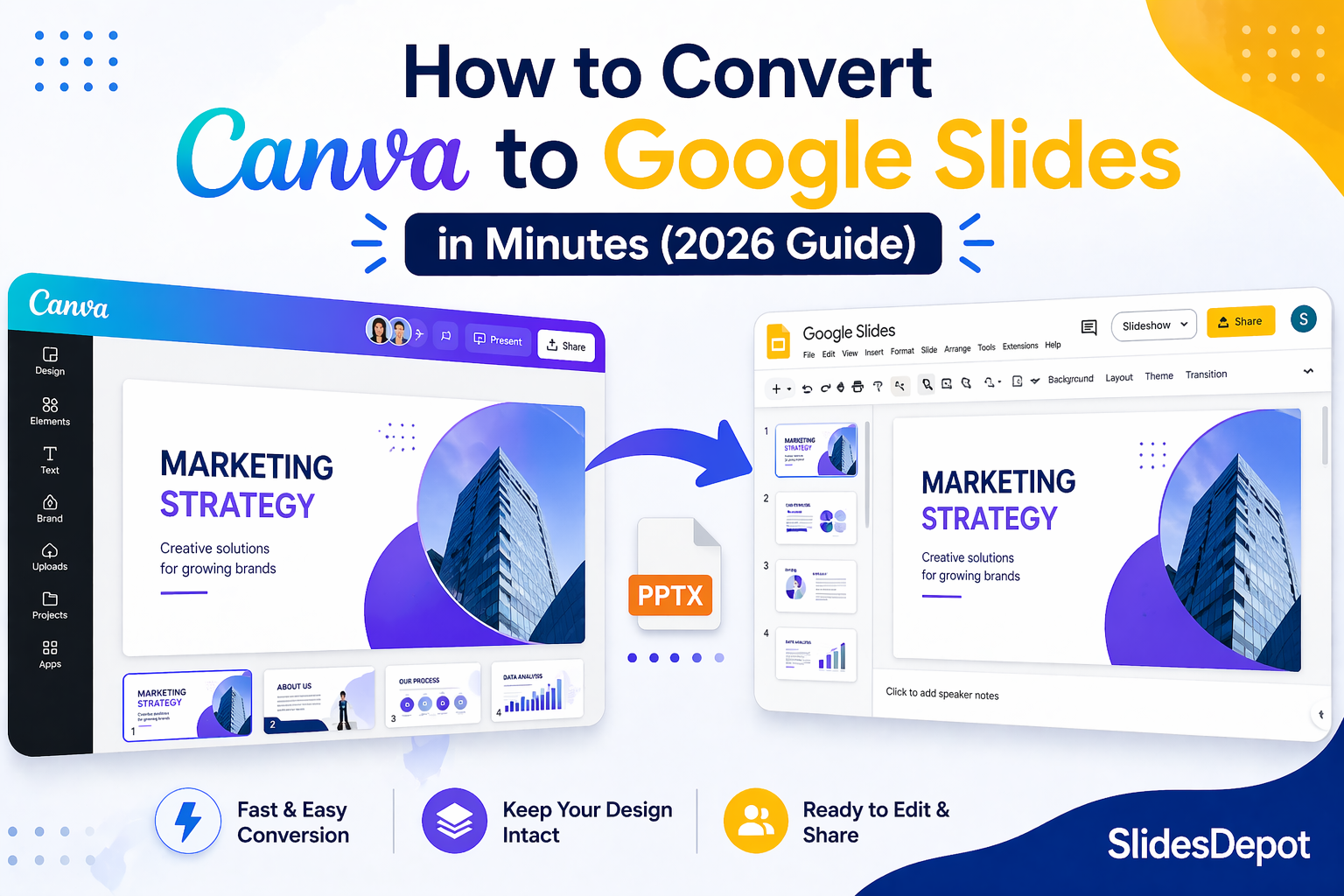
How to Convert Canva Presentations to Google Slides in Minutes (2026 Guide)
You spent hours building a beautiful presentation in Canva. The fonts are on point, the colors match your brand, and the layout looks exactly how you imagined it. Then someone asks for the file in Google Slides format, and suddenly the whole process feels far more complicated than it should be. This is a frustration…

How to Structure a Persuasive Speech People Actually Remember
A persuasive speech lives or dies in the first thirty seconds. You can have the strongest argument in the room, but if your opening doesn’t earn attention, the rest of your points are wasted breath. Most speakers spend weeks polishing their words and almost no time thinking about how those words are supported visually, which…