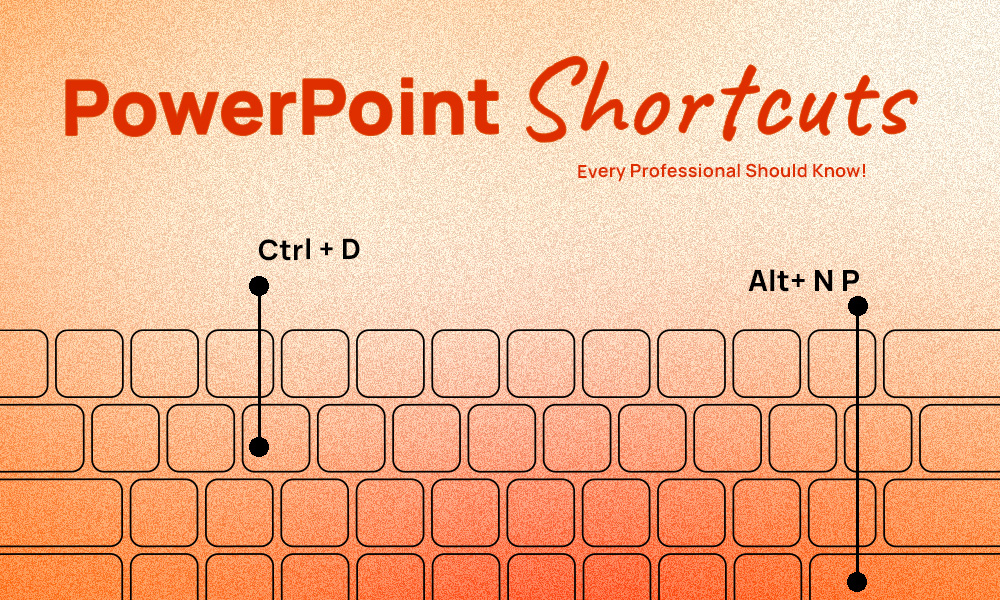
PowerPoint Shortcuts Every Professional Should Know (And Actually Use)


Creating presentations is a core part of many professional roles, yet countless hours are still lost navigating menus, adjusting layouts, and repeating simple actions. One of the most effective ways to work smarter in Microsoft PowerPoint is by mastering essential keyboard shortcuts. The right PowerPoint shortcuts help you build slides faster, keep designs clean and consistent, and focus more on your message instead of mechanics.
This article explores the most practical PowerPoint shortcuts that professionals rely on daily—from creating and organizing slides to formatting content and controlling slideshows. Whether you’re preparing a client pitch, internal report, or training presentation, these shortcuts can significantly improve efficiency and confidence in your PowerPoint workflow.
Why PowerPoint Shortcuts Matter for Professionals
PowerPoint is a robust presentation tool, but its real efficiency comes from knowing how to use it quickly and intentionally. Keyboard shortcuts eliminate repetitive mouse clicks and menu searching, allowing you to stay focused on slide structure, visual storytelling, and message clarity instead of technical steps.
Professionals who consistently use PowerPoint shortcuts experience clear advantages:
- Faster slide creation, even under tight deadlines
- Consistent formatting across large or complex presentations
- Fewer alignment and design errors
- Smoother, more confident presentations without workflow interruptions
When these shortcuts are combined with professionally designed layouts from https://slidesdepot.com/, productivity increases even further. Instead of spending time on layout setup and formatting fixes, you can focus on refining content and delivering presentations that look polished, cohesive, and presentation ready.
Essential PowerPoint Shortcuts for Faster, Smarter Presentations
Create and Organize Slides Faster
Structuring a presentation is often where most time is lost—adding slides, duplicating layouts, and rearranging content manually can slow down even experienced users. PowerPoint shortcuts remove this friction by allowing you to build and organize slides efficiently while keeping layouts consistent throughout your deck.
If you’ve ever wondered how to duplicate a PowerPoint slide without breaking its layout, keyboard shortcuts are the fastest solution.
Frequently used slide management shortcuts
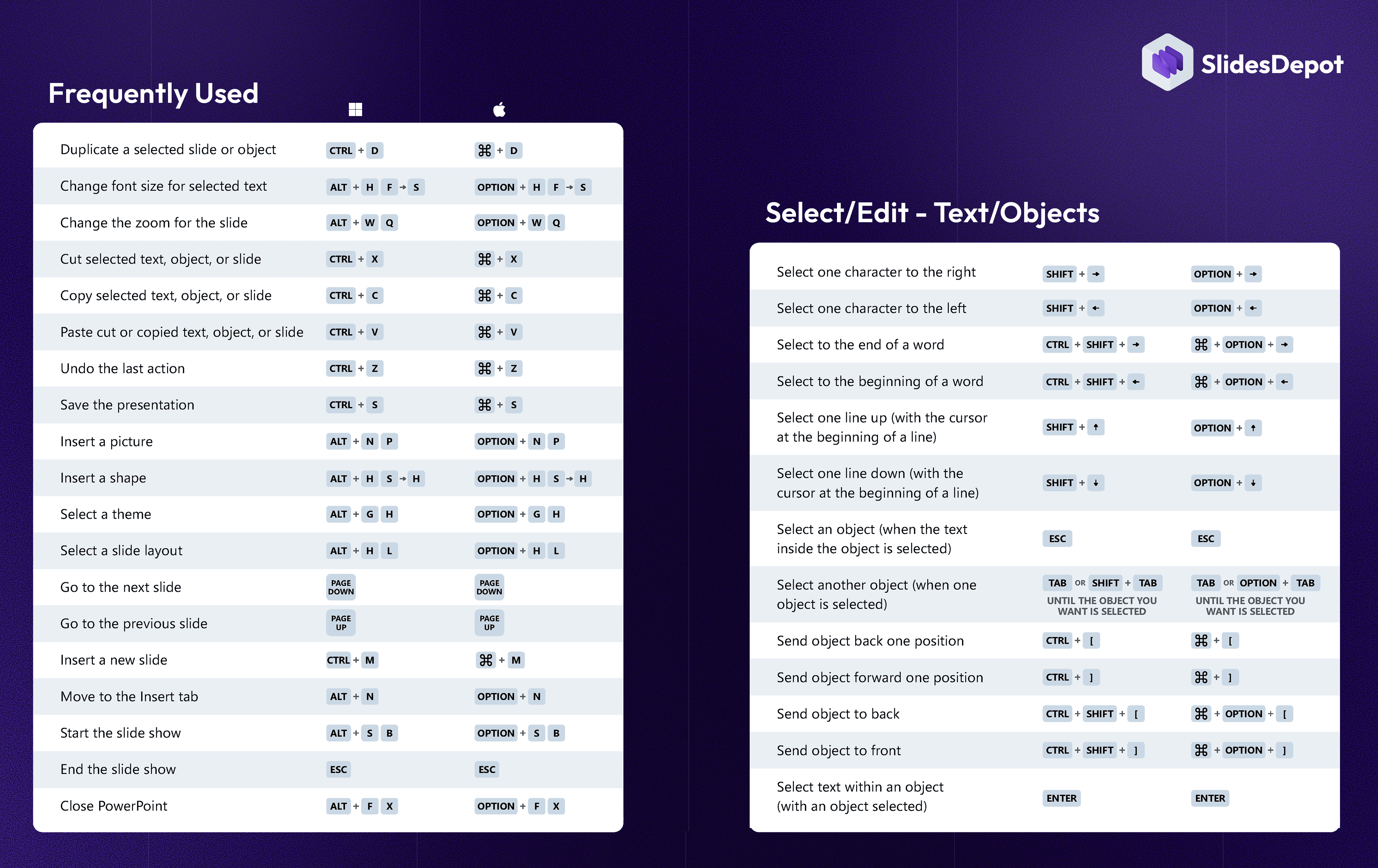
- Ctrl + M – Insert a new slide instantly
- Ctrl + D – Duplicate a selected slide or object
- Ctrl + Shift + D – Duplicate a slide while preserving its layout structure
- Ctrl + A – Select all objects on the current slide
- Ctrl + Shift + Up / Down Arrow – Reorder slides quickly in Slide Sorter view
These shortcuts are especially effective when working with structured presentations such as pitch decks, reports, and proposals. When combined with ready-made business layouts from https://slidesdepot.com/, you can create well-organized presentations in a fraction of the usual time.
Format Text and Align Objects Quickly
Professional presentations rely on clean typography and precise alignment. Instead of manually adjusting fonts and spacing, PowerPoint shortcuts allow you to format text and manage objects with speed and accuracy.
Text formatting shortcuts
- Ctrl + B / I / U – Apply bold, italic, or underline formatting
- Ctrl + T – Open the Font dialog box for advanced text styling
- Ctrl + = – Apply subscript
- Ctrl + Shift + + – Apply superscript
Knowing the superscript shortcut PowerPoint offers is especially useful when working with formulas, references, or footnotes in academic, scientific, or financial presentations.
- Ctrl + K – Insert a hyperlink
Object alignment and editing shortcuts
- Ctrl + G – Group selected objects
- Ctrl + Shift + G – Ungroup objects
- Shift + Drag – Resize objects proportionally
- Alt + Drag – Duplicate objects while dragging
These shortcuts are particularly useful when customizing charts, diagrams, and visuals from https://slidesdepot.com/infographics, helping you maintain alignment and visual consistency across slides.
Design Cleaner Slides with Ease
Effective slide design is built on clarity and consistency. PowerPoint shortcuts simplify layout control so you can focus on visual hierarchy and message flow instead of repetitive formatting tasks.
Design and layout shortcuts
- Ctrl + Shift + C – Copy formatting from an object or text
- Ctrl + Shift + V – Paste formatting instantly
- Ctrl + [ / ] – Move objects backward or forward one layer
- Ctrl + Shift + [ / ] – Send objects to the back or bring them to the front
Using these shortcuts ensures your SlidesDepot templates stay visually balanced and professionally layered while adapting them quickly to your brand or content needs.
Master Slideshow Controls Like a Pro
Designing strong slides is only half the job delivering them smoothly is just as important. PowerPoint shortcuts give you full control during live presentations without breaking your flow or distracting your audience.
Slideshow control shortcuts
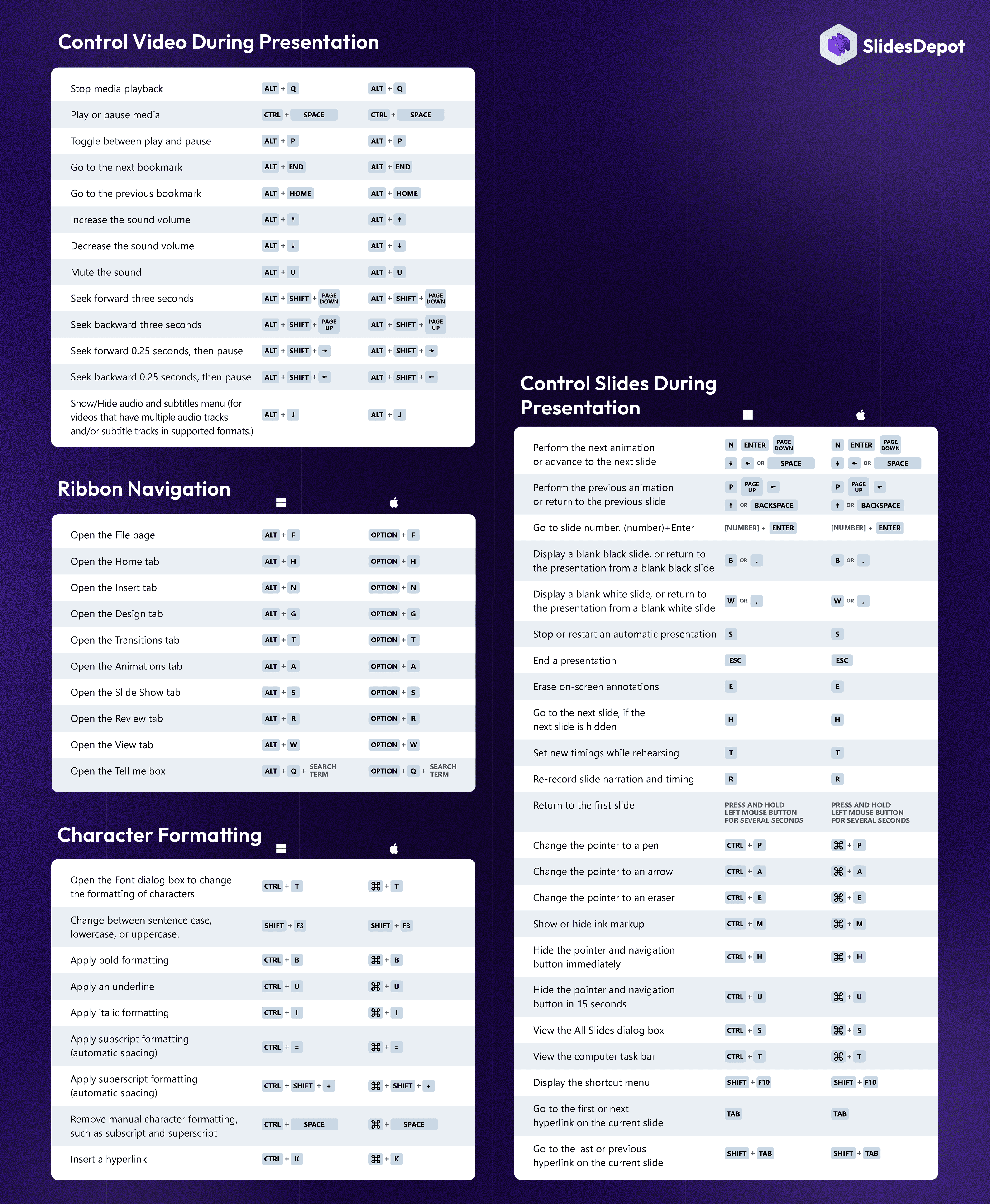
- Alt + S + B – Start slideshow instantly
- F5 – Start slideshow from the beginning
- Shift + F5 – Start slideshow from the current slide
- B – Pause the presentation with a black screen
- W – Switch to a white screen
- Ctrl + P – Activate the pen tool
- E – Erase on-screen annotations
- Esc – End the slideshow immediately
These shortcuts help you manage transitions, pauses, and audience interactions with confidence—especially during client presentations or executive meetings.
Hidden PowerPoint Shortcuts That Save Time
Some shortcuts are less commonly used but deliver significant efficiency gains once mastered. These are ideal for precision editing and final slide refinement.
- Ctrl + Shift + Drag – Duplicate and align objects instantly
- Ctrl + Alt + V – Open Paste Special options
- Ctrl + Shift + S – Apply slide layouts quickly
- Ctrl + X / C / V – Cut, copy, and paste objects or text
- Ctrl + Z – Undo the last action
If you’re looking for how to undo in PowerPoint, Ctrl + Z is the essential shortcut that lets you quickly reverse mistakes and experiment confidently with layouts and designs.
These shortcuts are especially useful when refining executive or client-facing presentations built with SlidesDepot templates.
Boost Productivity with SlidesDepot Templates
Keyboard shortcuts make PowerPoint faster, but templates make it more efficient. SlidesDepot offers professionally designed PowerPoint and Google Slides templates that are fully editable and shortcut-friendly.
By combining PowerPoint shortcuts with SlidesDepot templates from https://slidesdepot.com/, professionals can:
- Reduce slide creation time
- Maintain consistent branding
- Focus more on content and messaging
- Deliver polished presentations with minimal effort
Final Thoughts
Learning PowerPoint shortcuts every professional should know is one of the easiest ways to improve productivity and presentation quality. These shortcuts streamline slide creation, enhance design accuracy, and improve delivery confidence.
When combined with professionally designed templates from SlidesDepot, PowerPoint becomes a powerful productivity tool rather than a time-consuming task. Start using these shortcuts today and experience a faster, cleaner, and more professional presentation workflow.

What Is a Timeline? A Guide with PowerPoint Presentation Examples
Whether you’re planning a product launch, teaching historical events, or mapping out your company’s growth trajectory, timelines are one of the most powerful visual tools at your disposal. They transform complex sequences of events into clear, digestible narratives that audiences can instantly understand. Understanding Timelines: More Than Just Dates on a Line A timeline is…

Presentation Techniques to Engage Your Audience
Creating engaging PowerPoint presentations is a challenge many professionals face. Often, presentations fail not because the ideas are weak, but because slides are cluttered, visually inconsistent, or difficult to follow. This is where strong presentation techniques make a real difference. By combining clear structure, thoughtful visual design, and audience-focused delivery, you can create engaging PowerPoint…
PPT Meaning: Beginner Guide + Free PPT Templates from SlidesDepot
If you’ve ever been asked to create a PPT for school, college, or work, you might wonder what exactly PPT means. For beginners, this confusion is common, especially if you’re new to presentations or digital tools. Understanding the PPT meaning is the first step toward creating clear, organized, and professional presentations. This beginner-friendly guide explains what PPT is, how…