Google Slides vs PowerPoint Templates: Which Platform Is Right for You in 2026?
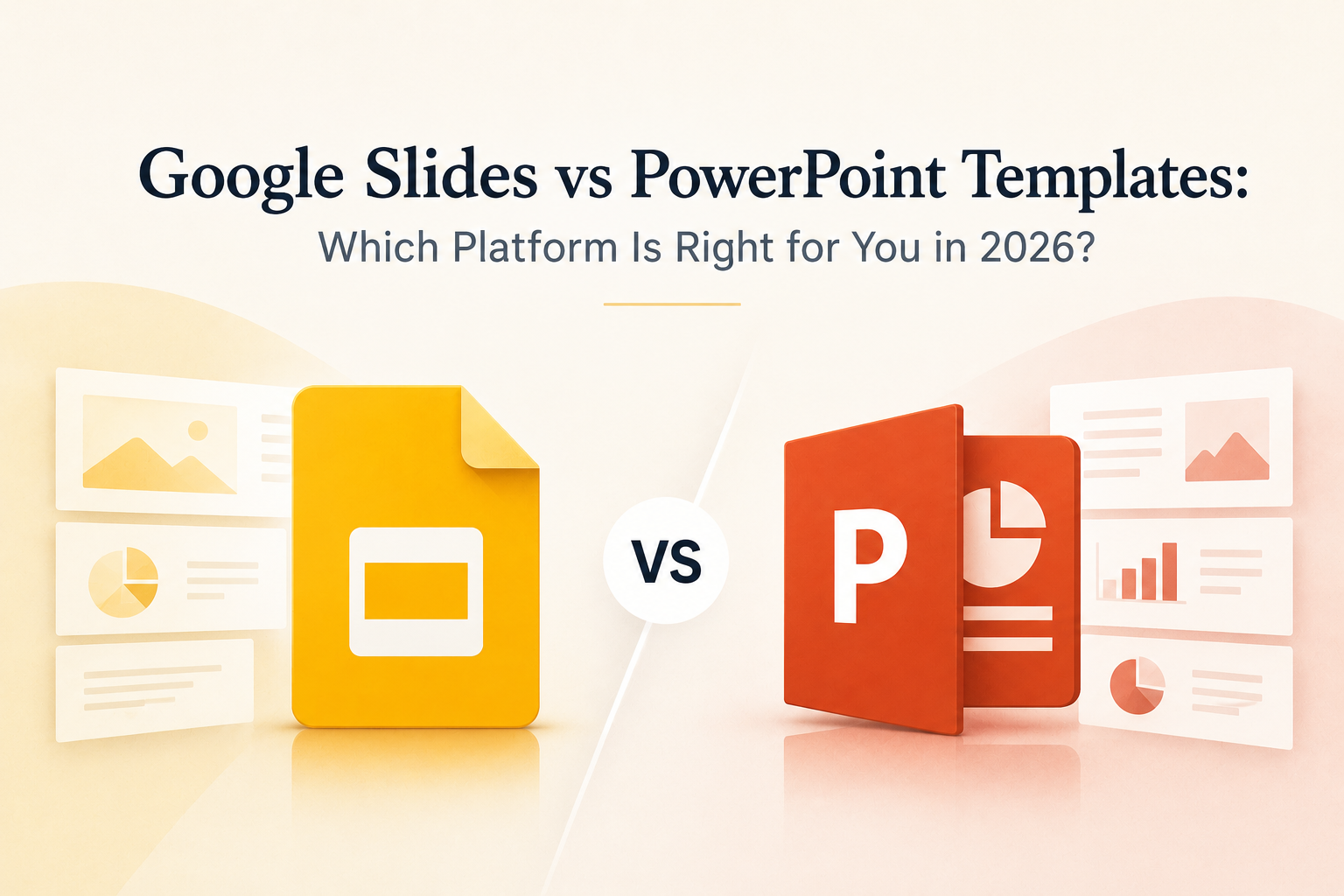


Picking the right presentation platform is one of those decisions that shapes how you work every single day. Google Slides and PowerPoint have both evolved significantly, and in 2026 they sit closer to each other in capability than ever before. Yet they still serve different workflows, different team structures, and different priorities.
This guide covers what genuinely matters when choosing between the two: template quality, design tools, collaboration, offline access, and who each platform is built for.
What a Good Presentation Template Actually Does
A presentation template is more than a design shortcut. A well-built template establishes visual consistency across every slide, gives you a structure that fits your content, and lets you focus on what you are saying rather than how things look.
Both Google Slides and PowerPoint have large template ecosystems supported by professional designers and third-party marketplaces. The best templates available today are built natively for each platform, meaning they are designed from the ground up for how that platform renders layouts, fonts, and elements, rather than converted from one format to another.
Google Slides vs PowerPoint Templates: A Detailed Comparison
Accessibility and Setup
Google Slides runs entirely in a browser. Anyone with a Google account can open, edit, and share a presentation without installing any software. This makes it straightforward for teams where members use different devices or operating systems.
PowerPoint is available as a desktop application and as a browser-based version through Microsoft 365. The desktop application offers the full feature set, while the browser version covers the essentials well for most everyday tasks. Both versions are widely used across professional and educational settings.
Template Library and Design Variety
PowerPoint has one of the most established template ecosystems in the presentation space. Marketplaces offer a broad range of professionally designed options including individual slides such as timelines, SWOT diagrams, and org charts, as well as complete decks covering pitch presentations, business reports, and corporate communications.
Google Slides templates have grown considerably in variety and quality. Many professional template providers now develop for both platforms simultaneously, releasing designs that work natively in either environment. For users sourcing templates from dedicated libraries, the selection across both platforms is now genuinely comparable.
Design Tools and Customization
PowerPoint provides a comprehensive set of design tools. Slide Master view allows you to control the visual theme of an entire deck from a single location. Detailed animation options, transition controls, and chart formatting give design teams the precision needed for brand-specific presentations. The built-in Designer tool offers layout suggestions as you work, which many users find useful during the early stages of building a deck.
Google Slides offers a clean, accessible design environment. Core customization such as editing colors, fonts, layouts, and image placement is intuitive and quick. Theme options and layout controls cover the needs of most professional presentations without requiring a design background.
For presentations that demand precise branding or complex visual elements, PowerPoint offers more granular control. For clear, well-structured slides produced efficiently, Google Slides is well-suited to the task.
Real-Time Collaboration
Google Slides was designed around collaborative editing. Multiple contributors can work on the same file simultaneously, leave comments, and review version history, all within the browser and with no additional configuration.
PowerPoint supports real-time co-authoring through Microsoft 365, using OneDrive or SharePoint as the file storage layer. This works smoothly for teams already operating within the Microsoft ecosystem. For broader collaboration involving external contributors or mixed platforms, Google Slides requires less setup to get everyone working together.
Offline Access
PowerPoint as a desktop application works independently of an internet connection. Files open and save locally, making it a reliable option for presenting in environments where connectivity cannot be guaranteed.
Google Slides is primarily browser-based. Offline editing is supported through a Chrome browser extension, which functions well once it has been set up. For users who need offline access regularly, it is worth configuring this ahead of time.
File Compatibility
PowerPoint files use the widely supported .pptx format, which is recognized by most presentation software and can be opened in Google Slides directly. Google Slides exports to .pptx as well, and most elements carry over cleanly. For presentations that will be shared across different tools or organizations, .pptx remains the more universally compatible format.
Choosing the Right Platform for Your Workflow
Both platforms are capable of producing professional, polished presentations. The right choice depends on how you work and who you work with.
Google Slides works well if you:
- Collaborate regularly with a distributed or cross-platform team
- Need a straightforward interface that anyone can use without training
- Work in education, a startup, or an environment where speed and accessibility are priorities
- Prefer a browser-based setup without local software dependencies
PowerPoint works well if you:
- Work in a corporate setting with defined branding standards
- Need advanced animation controls, detailed transitions, or precise chart formatting
- Present frequently in venues where internet access is unreliable
- Are already working within the Microsoft 365 environment
What to Look for in a High-Quality Template
Regardless of platform, a few factors consistently separate well-built templates from generic ones.
Full editability. Every element including text, shapes, icons, and colors should be straightforward to modify. A template that limits customization without reason adds unnecessary friction.
Native platform design. A template built for Google Slides should be designed and tested in Google Slides. A PowerPoint template should be built for PowerPoint. Files that have simply been converted between formats can display font inconsistencies or layout shifts that require repair before they are usable.
Current visual design. Design conventions in typography and color evolve over time. Templates built with current standards communicate professionalism from the first slide onward.
Layout flexibility. A reliable template holds together whether a slide contains two lines of text or eight. Rigid layouts that only work at a fixed content volume create problems when your content does not match the template exactly.
Libraries like SlidesDepot build templates natively for both PowerPoint and Google Slides, so design quality is consistent across formats regardless of which platform you are working in.
Final Thoughts
Google Slides and PowerPoint are both strong, well-supported platforms in 2026. Google Slides suits teams that value accessibility and real-time collaboration. PowerPoint suits organizations that need deeper design control and operate within the Microsoft 365 environment.
The most practical approach is to use templates built for both formats. That way, the platform you choose for any given project does not limit the quality or consistency of your presentation design.


PPT Meaning: Beginner Guide + Free PPT Templates from SlidesDepot
If you’ve ever been asked to create a PPT for school, college, or work, you might wonder what exactly PPT means. For beginners, this confusion is common, especially if you’re new to presentations or digital tools. Understanding the PPT meaning is the first step toward creating clear, organized, and professional presentations. This beginner-friendly guide explains what PPT is, how…

How to Add Audio to Google Slides (Step-by-Step Guide)
How to insert audio into google slides Want to make your presentation more engaging? Adding audio to your slides – whether it’s a voiceover narration, background music, or a sound effect – can turn a flat deck into a memorable experience. In this guide, the SlidesDepot team walks you through exactly how to add audio to Google Slides, step…
5 Free and Premium SlidesGo Alternatives You Should Try in 2026
SlidesGo is one of the most widely used presentation template platforms available today. It is free, easy to navigate, and covers an impressive range of topics and styles. Whether you need a business deck, an education presentation, or something creative, there is a good chance SlidesGo has something close to what you are looking for. …